
Released on October 5, 2021, Windows 11 represents the most recent significant update to Microsoft’s Windows NT operating system. Following Windows 10 (2015), it is offered at no cost to eligible Windows 10 devices that meet the updated system requirements for Windows 11.
Windows 11 follows a yearly feature update schedule, with these updates being released in the latter half of the calendar year. These feature updates provide 24 months of support for Home, Pro, Pro for Workstations, and Pro Education editions, while Enterprise and Education editions receive extended support lasting for 36 months.
Multiple editions of Windows 11 are available, including:
- Windows 11 Home: Designed for personal use, it encompasses all essential functions for the average user.
- Windows 11 Pro: Tailored for professionals and businesses, this edition incorporates additional features suitable for business purposes, including advanced security features and comprehensive management tools.
- Windows 11 Education: Specifically crafted for educational institutions, it includes features beneficial for schools and universities.
- Windows 11 Enterprise: Geared towards large organizations, it provides the most extensive set of features, encompassing advanced security measures and comprehensive management tools.
- Windows 11 IoT Enterprise: A version akin to Enterprise, offering the same functionality but with distinct mechanisms for licensing and distribution.
Discovering operating system information in Windows 11 is straightforward. To determine your device’s Windows version, OS build and edition follow these two methods:
Method 1 : Using Winver
- Press the Windows logo key + R
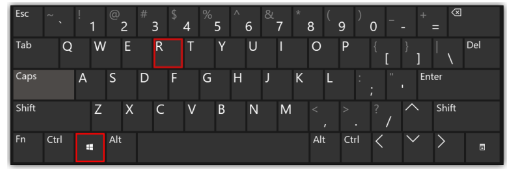
- Type winver in the Open box, and click OK.
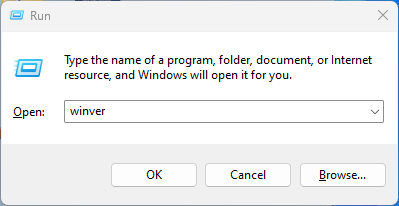
- The About Windows page will open, which includes the version and OS build as well as the edition of the Windows

Methos 2 : Using the System About page
- Click on Start, then choose Settings
- From the left side pane, click on System, then scroll down and click the About settings.
- Within Device specifications under System type, identify whether your system operates on a 32-bit or 64-bit version of Windows. Also under Windows specifications, review the edition, version and build of Windows currently installed on your device.
The Table below shows you all the released Windows 11 versions, including their version, build, release date and till when each version is supported.
| Version | Codename | Marketing name | Build | Release date | Supported until Home, Pro, SE, Pro Education, Pro for Workstations | Supported until Education, Enterprise, IoT Enterprise |
|---|---|---|---|---|---|---|
| 21H2 | Sun Valley | — | 22000 | October 4, 2021 | October 10, 2023 | October 8, 2024 |
| 22H2 | Sun Valley 2 | 2022 Update | 22621 | September 20, 2022 | October 8, 2024 | October 14, 2025 |
| 23H2 | Sun Valley 3 | 2023 Update | 22631 | October 31, 2023 | November 11, 2025 | November 10, 2026 |