Securing your Wi-Fi connection with a password is crucial for maintaining privacy and preventing unauthorized access to your network. However, this precautionary measure comes with its own set of challenges, particularly the difficulty in remembering the passkeys for multiple networks you may have connected to in the past.
In the realm of Windows 11, there’s good news. The operating system provides convenient solutions for users to view Wi-Fi passwords, granted the networks are saved on your PC. This functionality proves especially helpful when you find yourself struggling to recall the security keys associated with your Wi-Fi connections.
In this post, you will be able to retrieve the security keys of your Wi-Fi connections on Windows 11. Whether you’re looking to share the password with a guest or simply need a quick reference.
How to View the Wi-Fi password using the Network settings
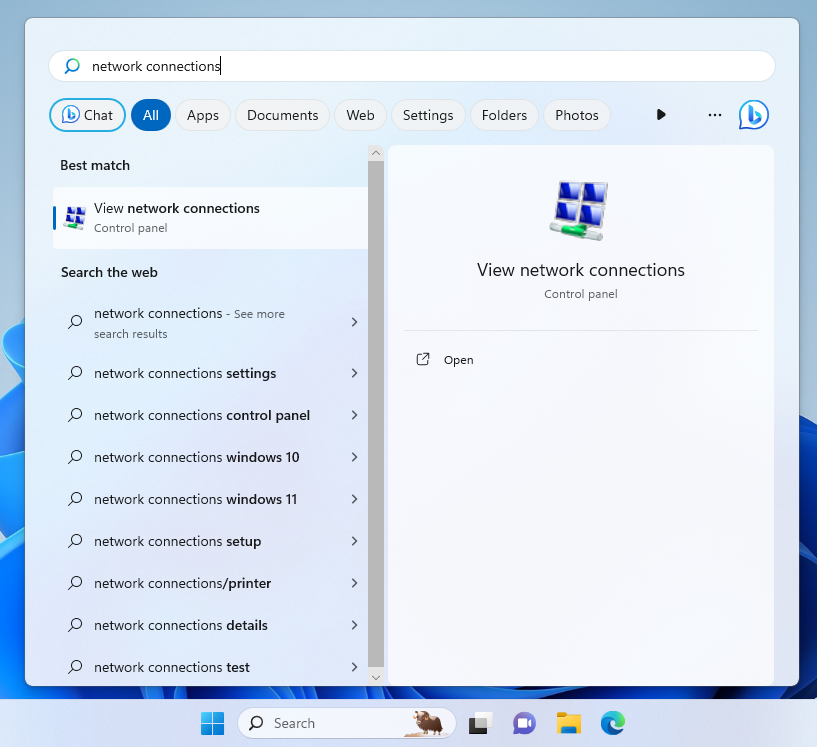
- Click Start and type network connections. Click View Network Connections
- The Network Connection window will open with all your available types ( either LAN, Wi-Fi , Bluetooth )
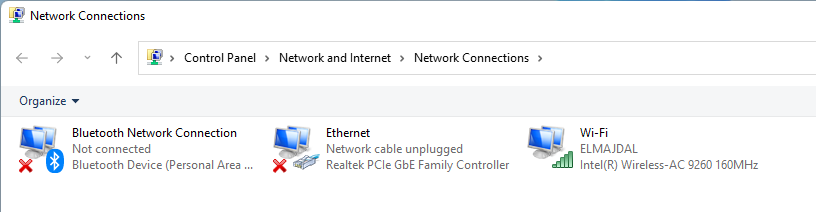
- Double click on the Wi-Fi adapter, or right click and click on Status

- In the Wi-Fi status windows, click on the Wireless Properties button
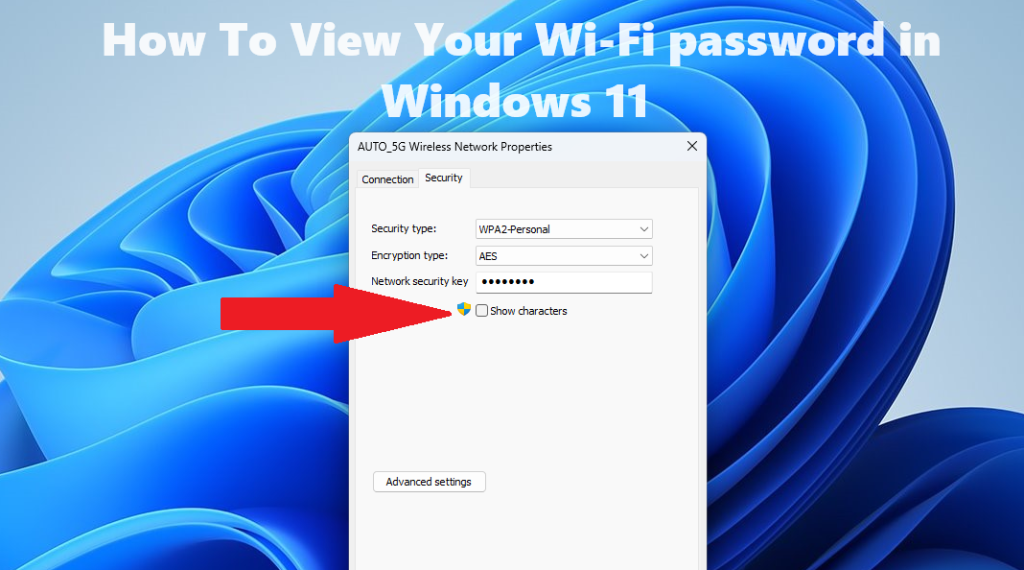
- At the top of the Wireless Network Properties window, click the Security tab.
- Beneath the Network Security Key field, enable the Show Characters check box, this will reveal your Wi-Fi password
- The password for your currently-connected Wi-Fi network will appear in the Network security key field.