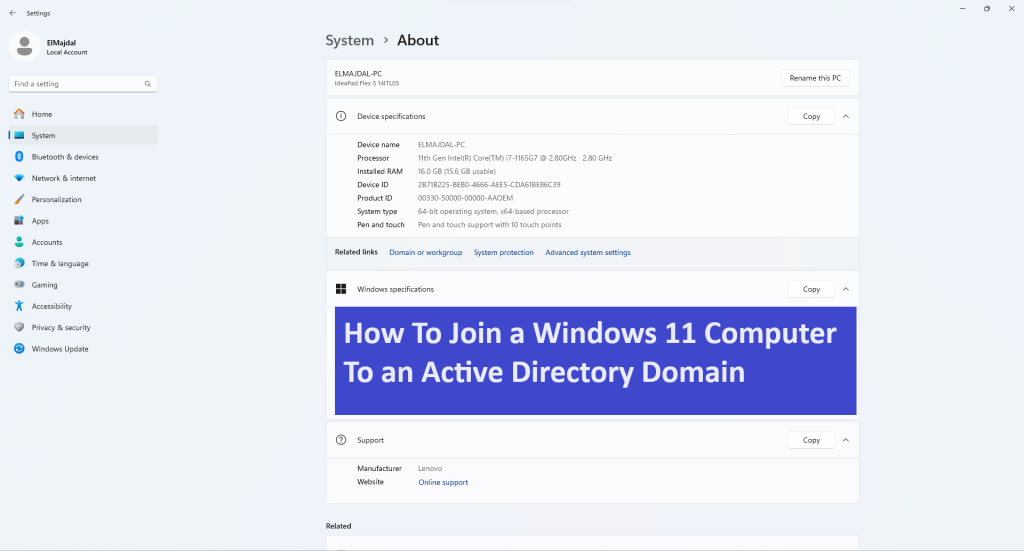
To centrally manage your Windows 11 devices, implementing security policies and group settings, it’s crucial to integrate them into an Active Directory domain. This post details the steps for joining a Windows 11 computer to an Active Directory domain.
Prerequisites and Preparations
Before incorporating your Windows 11 computer into a domain, certain conditions must be met, and preparations are required:
- Ensure your computer runs on Windows 11 Pro, Education, Pro for Workstations, or Enterprise edition. Home editions do not support domain joining, but you can acquire a Home to Pro upgrade license.
- Confirm your computer can resolve the domain name and ping the domain controller.
- Align your computer’s local time with the domain controller’s time, maintaining a five-minute time difference for Kerberos authentication. Read this article : Sync Clock Time with Internet Time Server in Windows 11
- Assign a unique and meaningful name to your computer for domain use. Modify the computer name and restart your computer. You Can read this article to know how : How To Rename Computer Name in Windows 11
- Possess a user account with delegated administrative permissions for domain joining. This could be a standard user account (allowing up to 10 devices per domain user by default) or an elevated domain administrator account.
Joining Windows 11 to a Domain :
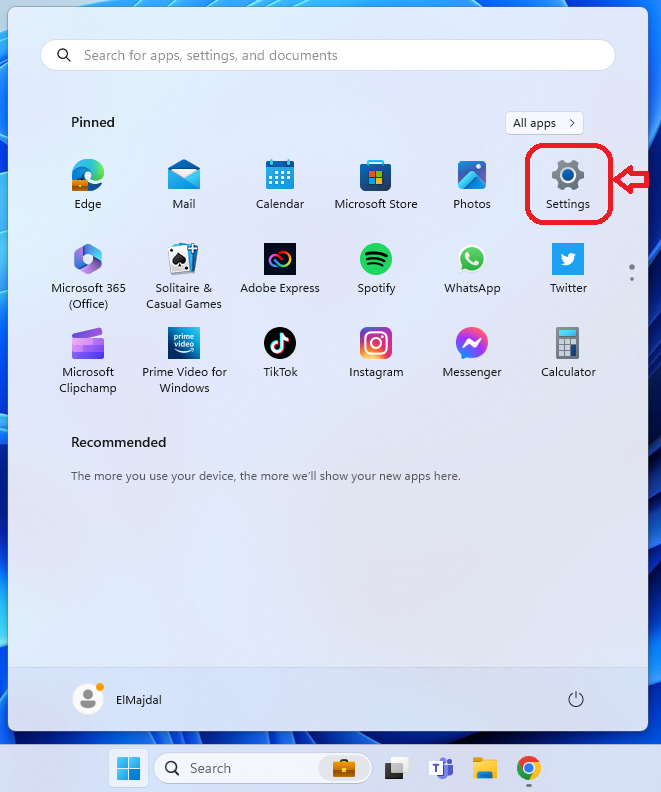
- Click Start and then Settings
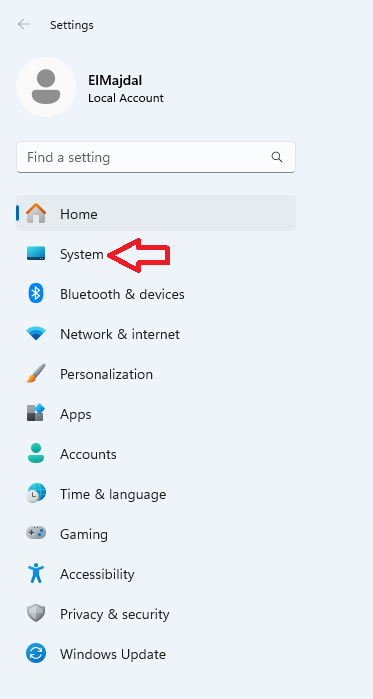
- From the left side pane, click on System
- In the System windows, scroll down and click on About

- In the About page, beside Related links, click on Domain or Workgroup
- In the System Properties window, click Change beside the : To rename this computer or change its domain or workgroup. click Change
- Under Member of, select the radio button beside Domain
- Type the domain name you wish to join and then click OK.
- A security window pops up asking for the username and password of the domain you want to join. Write them and click OK
- A tiny window welcomes you to the domain; click Ok.
- A window will prompt you to restart the computer. After the restart, your computer is a member of the Active Directory domain you joined to.