Close Menu
ElMajdal.netElMajdal.net
    ElMajdal.netElMajdal.net
    Contact Us
    • Home
    • Windows
      • Windows 11
      • Windows 10
      • Windows 8
      • Windows 7
    • Servers
      • Windows Server
      • Windows Server 2008
      • Exchange Server
    • MAC OS
    • ISA/TMG
    ElMajdal.netElMajdal.net
    Home»Windows 10»Unzipping Compressed Files on Windows Using WinRAR
    Windows 10

    Unzipping Compressed Files on Windows Using WinRAR

    2 Mins Read
    WhatsApp Facebook Twitter Telegram Reddit Email
    blank
    Share
    WhatsApp Facebook Twitter Telegram Reddit Email

    When interacting with your computer, you likely encounter files in .zip or .rar formats—referred to as compressed or packed files. Their purpose is to consolidate multiple files or folders into a single compressed file, making them more manageable for transmission and efficient in terms of storage.

    While Windows provides a built-in function for compression and decompression, utilizing WinRar offers a more robust solution. With WinRar, accessible via a simple download, you gain a user-friendly interface, additional features, and support for the .rar compression format, known for enhanced security when password-protected.

    While the free 30-day trial prompts a reminder to purchase the full version afterward, the software remains functional beyond the trial period, ensuring an extended and versatile compression experience.

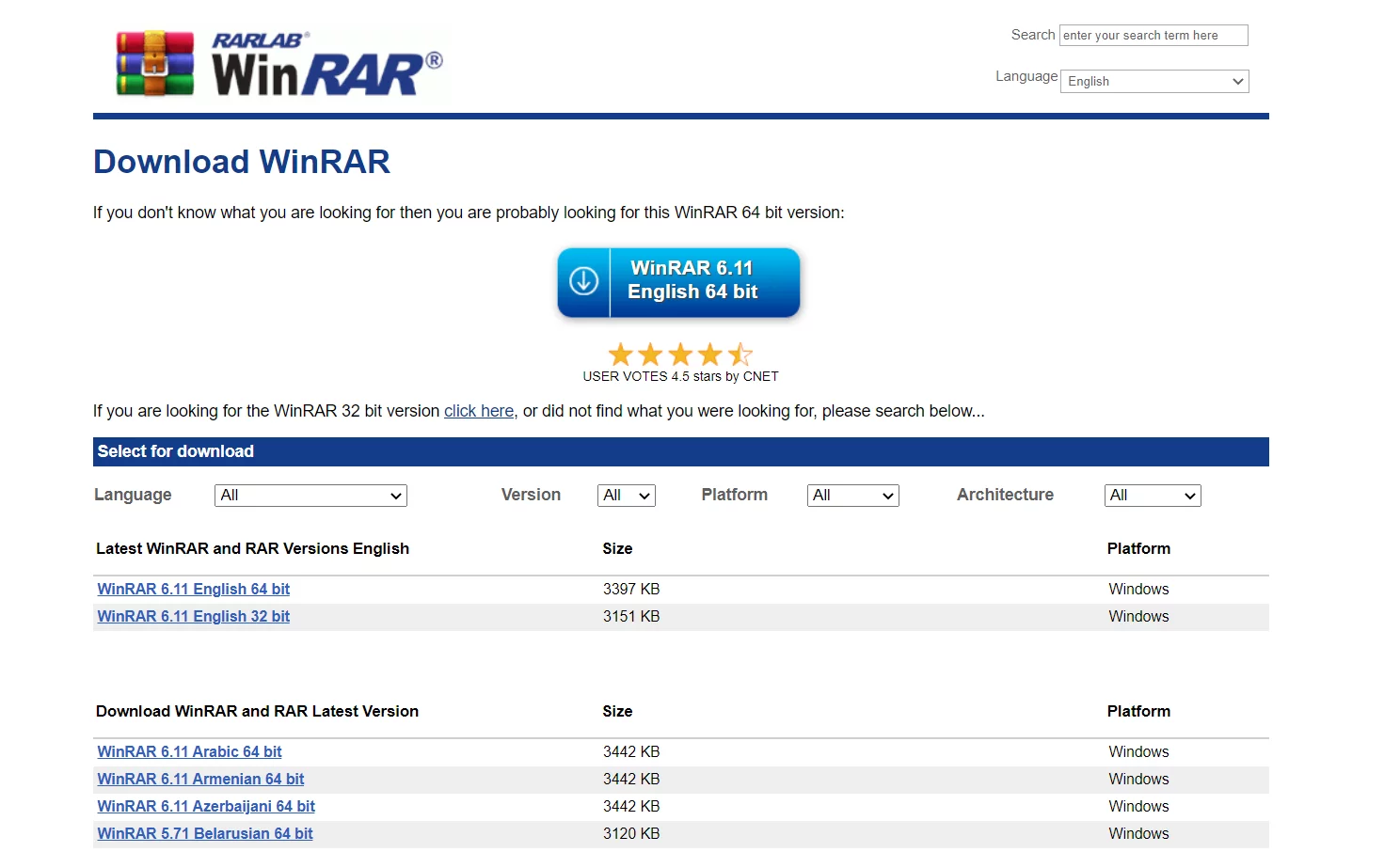
    You can download the appropriate version for your system here:
    https://www.win-rar.com/download.html
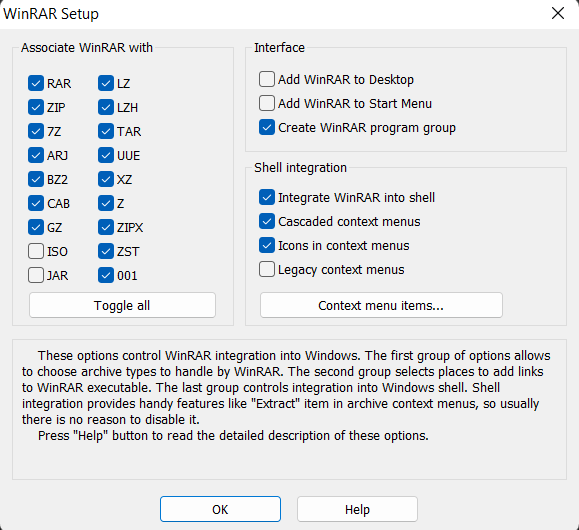
    Initiate the installation process by double-clicking the downloaded file and selecting Install on the subsequent window. The following screen presents WinRar’s configuration options. The left panel, filled with checkboxes, dictates the file formats associated with WinRar on your computer. Typically, the default settings are sufficient, so proceed by clicking OK
    Proceed to the next screen and click Done to complete the installation. Now, WinRar is associated with nearly all compressed files, and their icons have been updated accordingly.

    Decompress files linked with WinRar by right-clicking the compressed item and then choosing : Extract to ” File/Folder Name”


    For file compression, simply choose the desired files, right-click, and opt to compress them directly into a .rar archive .

    Share. WhatsApp Facebook Twitter Telegram Reddit Email
    Previous ArticleSync Clock Time with Internet Time Server in Windows 11
    Next Article How To Rename Computer Name in Windows 11

    Related Article

    How To Fix The Microsoft Print To PDF Feature Not Working In Windows 10

    How To Find The MAC/Physical Address In A Windows 10 Computer

    How To Protect Your PC From Ransomware Using Windows Security

    Latest Posts

    How To Enable Active Directory Recycle Bin On Windows Server

    How To Check The Health Of Your Laptop’s Battery In Windows

    How To Transfer FSMO Roles In Active Directory Using PowerShell

    How To Check Active Directory Forest And Domain Functional Level In Windows Server

    Advertisement

    For any Feedback, click on the Contact Us link

    Quick Links
    • Contact Us
    • Windows 11
    • Windows 8
    • Windows 10
    • Windows 7
    • Windows Server
    • Windows Server 2008
    • Exchange Server
    • macOS
    • ISA Server
    • Privacy Policy
    • Contact Us
    • Windows 11
    • Windows 8
    • Windows 10
    • Windows 7
    • Windows Server
    • Windows Server 2008
    • Exchange Server
    • macOS
    • ISA Server
    • Privacy Policy
    © ElMajdal 2007-2026

    Type above and press Enter to search. Press Esc to cancel.