Introduction
With Mac OS X Lion, you can now show the username of the logged in user on the Menu bar, this will help you to quickly switch between users, lock your machine by showing the login window.
This how the username will look like on the menu bar, My username is Tarek Majdalani
To show the username on the menu bar, follow these steps :

Open System Preferences. Do this by clicking on the Apple logo  in the top left side of the screen and then click on System Preference…

2. In System Preferences, under System, click on Users & Groups
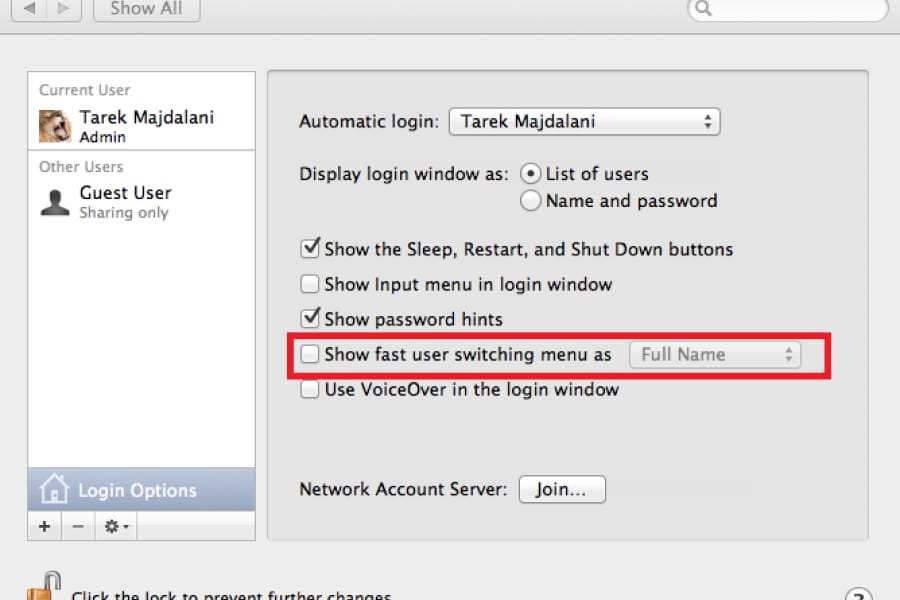
3. Inside Users & Groups, click on Login Options
4. If the Login Options are grayed, then you will have to click on the Lock icon and type a password for a user with an administrative rights.If you don’t have a password, then simply click on unlock without typing any password
If the user you are logged in with is an administrator on this computer, then type the password . If your account does not have an administrative rights, then ask an administrator to type his username and password.
5. Once the password is type, press the Unlock button. the Login options will become active. Select the option Show fast user switching menu as Full Name
This will show the username instantley on the menu bar.If at any time later you wanted to remove the username from the menu bar, then all what you have to do is to come back to the login options page and deselect this option.
Summary
With OS X Lion, a new feature is introduced by showing your account username on the menu bar. I personally use this option to quickly lock my account when I want to leave my laptop alone.