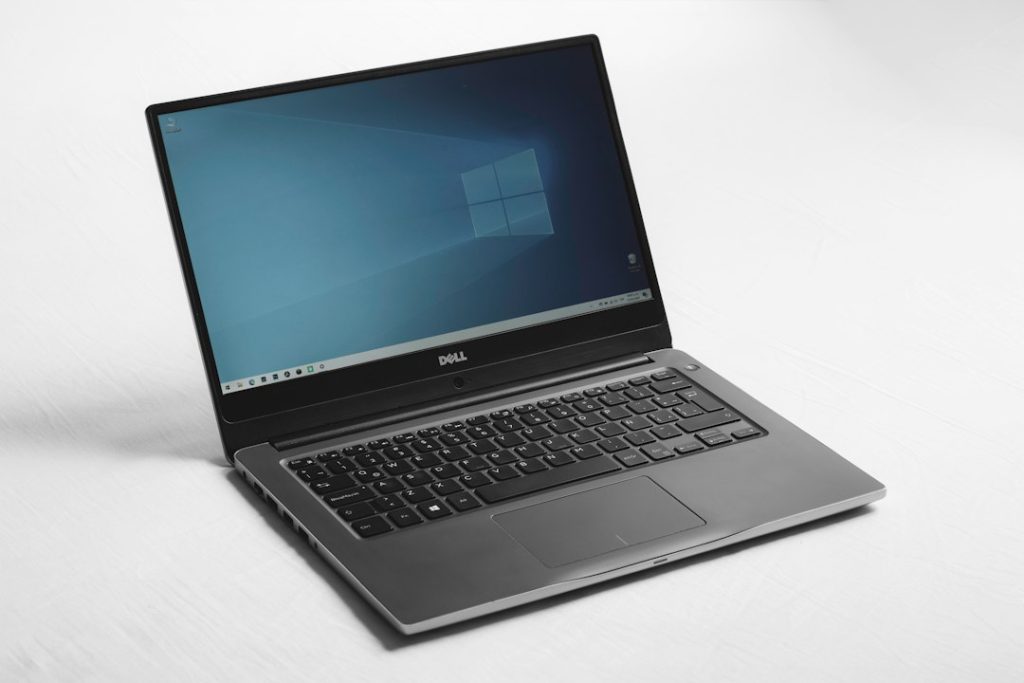
Does your Windows 11 laptop take too long to become usable after you sign in? Applications that launch automatically can delay the desktop and consume memory. Windows includes two built-in ways to review startup apps without installing a third-party cleaner.
This guide explains how to disable optional startup apps using Settings or Task Manager, how to check the Startup folder, and which entries you should leave enabled. Changes described here can be reversed at any time.
Before you begin: What should you disable?
Focus on optional applications you recognize and do not need immediately after sign-in, such as a game launcher, meeting application, music player, or an update assistant. An app being listed as a startup item does not mean it is harmful.
Do not indiscriminately disable endpoint security software, VPN clients required by your employer, accessibility tools, backup agents, device management software, or applications you rely on for notifications and file synchronization. On a managed work device, follow your IT team’s policy.
Method 1: Disable startup apps from Windows 11 Settings
- Press Windows + I to open Settings.
- Select Apps in the left navigation panel.
- Open Startup.
- Review the application names. Where available, check the startup-impact information and app publisher.
- For an optional program you do not want launching when you sign in, switch its toggle to Off.
- Restart or sign out and back in when convenient to check the change.
Settings → Apps → Startup
Select an optional application → turn its startup toggle Off
Turning a startup toggle off generally stops that application’s registered automatic launch at sign-in; it does not uninstall the app or prevent you from opening it manually.
Method 2: Use Task Manager to review startup impact
- Press Ctrl + Shift + Esc to open Task Manager.
- If Task Manager opens in a compact view, expand it to see the navigation tabs.
- Select Startup apps in the left sidebar.
- Review the Status, Publisher and Startup impact columns where shown.
- Select an optional application and click Disable (or right-click and choose Disable).
- To reverse the decision, select the entry and choose Enable.
| Example application | Startup impact | Decision to consider |
|---|---|---|
| Optional game launcher | High (illustrative) | Disable if rarely used |
| Optional music app | Medium (illustrative) | Disable if not needed at sign-in |
| Corporate security agent | Varies | Keep enabled; ask IT |
| Backup/sync client | Varies | Keep if background sync is required |
What does Startup impact mean? Windows uses impact categories as clues about startup resource use. A higher category can help prioritize what to review, but disabling a high-impact program may be inappropriate if it provides necessary protection, accessibility or synchronization.
Method 3: Check the Startup folder
Some older desktop applications launch from a shortcut in the current user’s Startup folder instead of appearing as a typical Settings toggle.
- Press Windows + R to open Run.
- Type the following command and press Enter:
shell:startup- File Explorer opens the Startup folder for your Windows account.
- If you recognize an optional application shortcut you no longer want running at sign-in, move the shortcut to another folder for safekeeping or delete that shortcut—not the application’s executable or program folder.
- To restore startup behavior, return the shortcut to the Startup folder.
For applications configured to start for all users, Windows also has a separate common Startup folder:
shell:common startupChanging shared startup entries may require administrator privileges and affect every user of the PC. Do not change them without understanding their purpose.
Method 4: Turn off launch-at-sign-in within the app
Some applications have their own option called Start with Windows, Launch at login, or Run in background. Open the application’s Settings or Preferences and disable automatic startup if you do not require it. This is often the most direct method for programs that repeatedly re-enable their startup entry after updates.
How to tell whether the change helped
Make a note of the applications you disabled and reboot once. Compare the time until the PC becomes responsive, and check whether a required application or notification is missing. Results vary with storage speed, available memory, Windows updates and background activity; disabling startup apps cannot fix every kind of slow boot.
If Windows takes a long time before the sign-in screen, the issue may involve firmware, storage, device drivers or updates rather than sign-in startup apps.
Troubleshooting: Startup app is missing or comes back
The program is not listed in Startup apps
Check its own settings and the Startup folder. Some programs launch through services or scheduled tasks managed by IT or the installer. Do not disable unfamiliar services or scheduled tasks simply to speed up startup.
A disabled app starts again after an update
Review the program’s own launch-at-sign-in preference. Updates sometimes restore defaults; change the application’s supported option rather than editing the registry blindly.
I disabled something important
Return to Settings → Apps → Startup or Task Manager → Startup apps and re-enable it. If you removed a Startup-folder shortcut, restore it. You can still launch a disabled app normally from Start.
Windows still starts slowly
Check available disk space, pending Windows updates and hardware health. Avoid third-party “registry cleaners” as a generic fix. If your problem is a laptop that is already running but cannot connect to the internet, see our separate Windows 11 Wi-Fi troubleshooting guide.
Frequently asked questions
Does disabling a startup app uninstall it?
No. It changes how the application starts automatically. You can still open it manually.
Should I disable all startup programs?
No. Keep security, accessibility, essential backup and business applications running when required.
Is Task Manager better than Settings?
Both use Windows’ built-in startup controls. Task Manager provides an easy overview of startup impact and status, while Settings offers simple on/off switches.
Quick reference
| Action | Where to go |
|---|---|
| Manage startup toggles | Settings → Apps → Startup |
| Check startup impact | Ctrl + Shift + Esc → Startup apps |
| Open current-user Startup folder | Windows + R → shell:startup |
| Open all-users Startup folder | Windows + R → shell:common startup |
Further reading: Microsoft Support: Configure Startup Applications in Windows; Microsoft Q&A: Determine which programs start with Windows 11.
Featured photograph: Erick Cerritos / Unsplash. Inline visual guides are illustrative diagrams, not screenshots from a tested Windows device.