Introduction
Forms-based authentication has three logon options for the default sign-in format in Exchange Server 2010. In this article I will be showing them to you and how to change to a different logon option.
The three options for the default sign-in format are :
FullDomain : This is the domain and user name of the user in the format domain\user name. For example, for a user named Tarek.Majdalani in the domain elmajdal, the sign-in would be elmajdal\tarek.majdalani
PrincipalName : If user principal name (UPN) sign-in format is specified, the User Name field on the Outlook Web App sign-in page guides the user to enter their e-mail address. For example, [email protected].
UserName : This is the user name only and doesn’t include the domain name. For example, tarek.majdalani
These options change only the text on the Outlook Web App sign-in page. They don’t cause a particular format to be required. The user can use any of the standard sign-in formats regardless of the text on the page.
To change OWA forms-based logon option, follow the below steps :
1. Open Exchange Management Console, and then from the left side pane, expand Server Configuration and click on Client Access
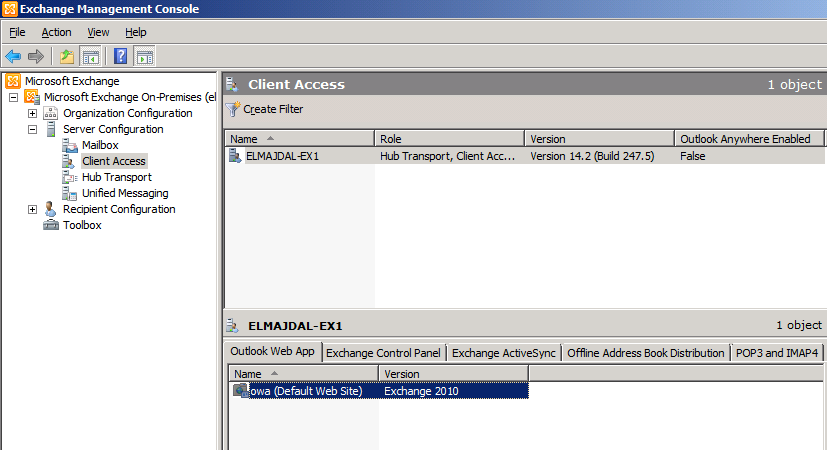
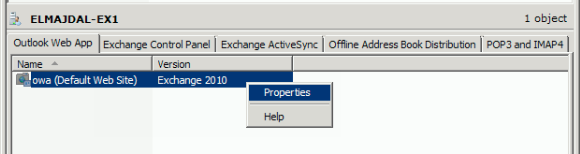
2. From the middle pane, and under the Outlook Web App tab, right click on owa (Default Web Site) and click Properties
3. The owa properties will open, click on the Authentication tab

As you can see, under the forms-based authentication section, three authentication options available:
-
Domain\user name
-
User principal name (UPN)
-
User name only
The default logon option is by typing DomainName\UserName
and this is how it looks like on OWA
It prompts the user to enter : elmajdal\tarek.majdalani for example.
4. If you want to change it to be : User principal name (UPN), then select the second option and click on OK
This how it will look like on owa. You are guided to enter the [email protected] as shown below
5. The most common used option, is using the third option which is the User name only
Select the User name only option, and then you will need to select the Domain name. Click on the Browse button
The list of available domains in the forest will be displayed. Select the domain name and then click on OK
The selected domain name will be displayed under the Logon domain textbox. Click OK
below you can see how the User name only will display the authentication option on owa
6. Last thing to mention, is that when you change from one authentication option to another, you will be presented with a warning message, that the changes won’t be applied till you restart IIS.
You can do this either through command prompt or through IIS management console .
To restart IIS using command prompt, then open command prompt in elevated mode and type : iisreset /noforce
or by opening IIS Manager , and the from the left side node, click on your Server name , and then from the right side pane, under Actions click on Restart
4. The changes will be applied. Now open your server OWA page, for example https://mail.elmajdal.com/owa , and check how the selected authentication option is displayed now.
Summary
Forms-based authentication gives you three options for the default sign-in format. These options change only the text on the Outlook Web App sign-in page. They don’t cause a particular format to be required. The user can use any of the standard sign-in formats regardless of the text on the page.