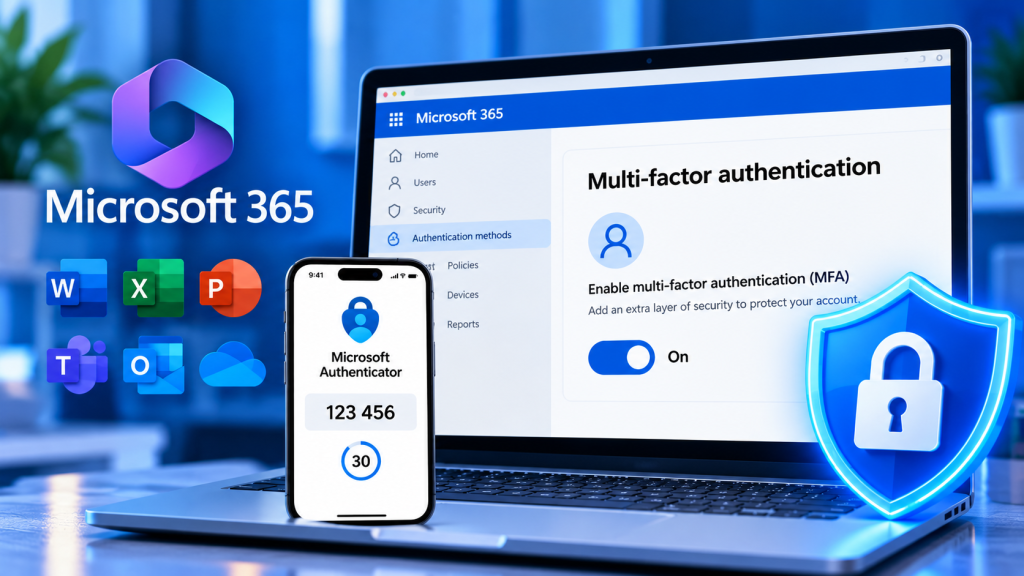
Multi-factor authentication (MFA) adds another verification step to Microsoft 365 sign-ins, reducing the risk that a stolen password alone will compromise your account. This tutorial explains the difference between registering Microsoft Authenticator and requiring MFA across an organization, then walks through both safely.
Quick answer: For your work or school account, open Security info, choose Add sign-in method → Microsoft Authenticator, and scan the setup QR code. Administrators must separately ensure MFA is enforced using an appropriate Microsoft Entra policy, such as security defaults or Conditional Access.
Before you begin
- Have your work or school account credentials and a smartphone with the current Microsoft Authenticator installed.
- Use a trusted computer and your own device. Never send anyone your Authenticator setup QR code, recovery codes or sign-in approval requests.
- Your organization’s sign-in and registration policies control which methods are offered. You may already be required to register during sign-in.
- For organization-wide changes, first inventory existing authentication requirements, emergency access accounts, and affected users. Avoid locking out administrators.
Part 1: Set up Microsoft Authenticator for your Microsoft 365 account
Step 1. Open your Microsoft 365 Security info page
On your computer, sign in at mysignins.microsoft.com/security-info with your work or school account. If the page redirects you through a security-registration wizard, follow that process. A personal Microsoft account uses a different security page at account.microsoft.com/security.
Step 2. Choose Add sign-in method
On the Security info page, select + Add sign-in method, choose Microsoft Authenticator (if offered), and select Add. Follow the prompts until a QR code appears on the computer. If it is missing, your administrator may have restricted the method.
Step 3. Add the account to Microsoft Authenticator
Open the app on your phone, tap +, choose Work or school account, then Scan QR code. Allow camera access when prompted and scan the QR code displayed on your computer. If your camera cannot scan, select the manual setup option shown in the browser and carefully follow Microsoft’s instructions.
Step 4. Confirm the registration test
Continue in the browser. Microsoft may send a test notification or otherwise request verification. Unlock your phone, compare the number displayed in the browser with the number-matching prompt in Authenticator, then approve only if you personally initiated this registration. You should see the new method listed on the Security info page.
Step 5. Add a permitted backup method
In Security info, select Add sign-in method again and configure another method if your organization permits it, such as a passkey, security key, or phone method. Your available choices depend on the tenant’s policies. Do not confuse adding a method with enabling an MFA requirement: registration alone does not guarantee every sign-in will prompt for MFA.
Step 6. Test your next sign-in
Open a private browser window and sign in to a Microsoft 365 service. Follow the on-screen authentication challenge. If number matching is presented, confirm that the number on the computer matches the prompt in Authenticator. The service may not challenge you on every attempt because token sessions and policy conditions influence prompts.
Part 2: Require MFA as a Microsoft 365 administrator
Important distinction: The Microsoft 365 admin center is not the only place that affects MFA. Microsoft Entra ID controls authentication methods and tenant sign-in policies. The right enforcement choice depends on your licensing and existing configuration.
Step 7. Review the current policy before making changes
Sign in to the Microsoft Entra admin center with an authorized administrator account. Review current Conditional Access policies, authentication-method settings, security defaults, and emergency access procedures. Record which groups and accounts are already covered. If Conditional Access is in use, don’t independently enable security defaults: these are alternative approaches, not two settings to pile on.
Step 8. Choose security defaults or Conditional Access
Security defaults: For eligible tenants without custom Conditional Access policy needs, Microsoft’s baseline security defaults provide MFA registration and protections without per-user rule design. In the Entra admin center, find Entra ID → Overview → Properties → Manage security defaults (labels/navigation may differ) and review the impact before enabling.
Conditional Access: Organizations with the appropriate licensing and advanced requirements typically use carefully scoped Conditional Access policies to require MFA for selected users, apps or risk scenarios. Navigate to Entra ID → Protection → Conditional Access → Policies, as available in your portal, and build/test a policy with the target groups and a Require multifactor authentication grant control. Follow Microsoft’s current implementation guidance; use report-only mode when available and exclude properly managed emergency access accounts. Don’t turn on an untested all-user policy.
Step 9. Review authentication methods policy
Under Entra ID → Authentication methods → Policies, review which users can register Microsoft Authenticator and any other approved methods. This policy configures allowed methods; it does not by itself replace the policy that requires MFA. Administrators editing authentication methods typically need the Authentication Policy Administrator role or an appropriately authorized role.
Step 10. Pilot, verify, and communicate the rollout
Use a small pilot group first. Confirm registration, number matching, and sign-in behavior on managed and unmanaged devices as appropriate. Verify emergency access, service accounts and legacy applications; review sign-in logs for failures. Notify users where to register and whom to contact if their phone is lost. Expand the rollout only after validation and approval.
Troubleshooting Microsoft 365 MFA
Microsoft Authenticator is missing from Add sign-in method
Your organization’s authentication methods policy may not permit Authenticator for your group, or registration may be restricted by Conditional Access. Contact your Microsoft 365 administrator rather than using an unapproved workaround.
My phone never receives an approval request
Check network access, app notifications, battery restrictions, device time and whether the work or school account is listed in Authenticator. Do not approve unexpected requests. If you’re locked out, use an already-registered alternative method or follow your help desk’s verified recovery process.
I changed or lost my phone
If you still have a working verification method, sign in to Security info to register the new phone before removing the old method. If every factor is unavailable, contact your organization’s identity support team; an authorized administrator may use supported recovery options such as a Temporary Access Pass where configured.
I registered Authenticator, but Microsoft 365 doesn’t ask for it
Registration and MFA enforcement are separate. An existing session might also avoid an immediate re-prompt. Administrators should inspect the user’s sign-in logs and applicable security defaults or Conditional Access policy instead of relying only on a single browser test.
Security best practices
- Never approve an unexpected Authenticator request. A surprise prompt can indicate an attacker knows your password.
- Prefer phishing-resistant methods such as FIDO2/passkeys when supported and appropriate. App-based MFA is valuable, but not equally resistant to all phishing techniques.
- Maintain at least one approved backup access method and documented recovery procedures.
- Review tenant sign-in reports after deployment; investigate unusual geographies, repeated denials and impossible-travel alerts according to organizational policy.
- Educate employees about QR-code phishing and MFA fatigue attacks. For related Windows protection, see our Windows 11 ransomware security checklist.
Frequently asked questions
Does installing Authenticator automatically turn on MFA?
No. It registers a verification method. An account or tenant policy must require additional verification for applicable sign-ins.
Can I use MFA without a phone?
Depending on your organization’s settings, supported security keys, passkeys and other methods may be available. Ask your administrator which alternatives are permitted.
Is Microsoft Authenticator the only possible MFA method?
No. Microsoft Entra supports multiple methods, but the set that each organization allows and requires depends on policy and licensing.
Official Microsoft references
- Microsoft Support: Add work or school accounts to Microsoft Authenticator
- Microsoft Learn: Security defaults
- Microsoft Learn: Manage authentication methods
- Microsoft Support: Sign in using Authenticator
Visual policy: the diagrams in this tutorial are original labeled instructional diagrams, not screenshots of a live tenant. Featured image: Franck / Unsplash (licensed under Unsplash terms). Your Microsoft 365 interface can vary with service updates, tenant policy and license.