Close Menu
ElMajdal.netElMajdal.net
    ElMajdal.netElMajdal.net
    Contact Us
    • Home
    • Windows
      • Windows 11
      • Windows 10
      • Windows 8
      • Windows 7
    • Servers
      • Windows Server
      • Windows Server 2008
      • Exchange Server
    • MAC OS
    • ISA/TMG
    ElMajdal.netElMajdal.net
    Home»Windows 11»How to Left-Align Taskbar in Windows 11
    Windows 11

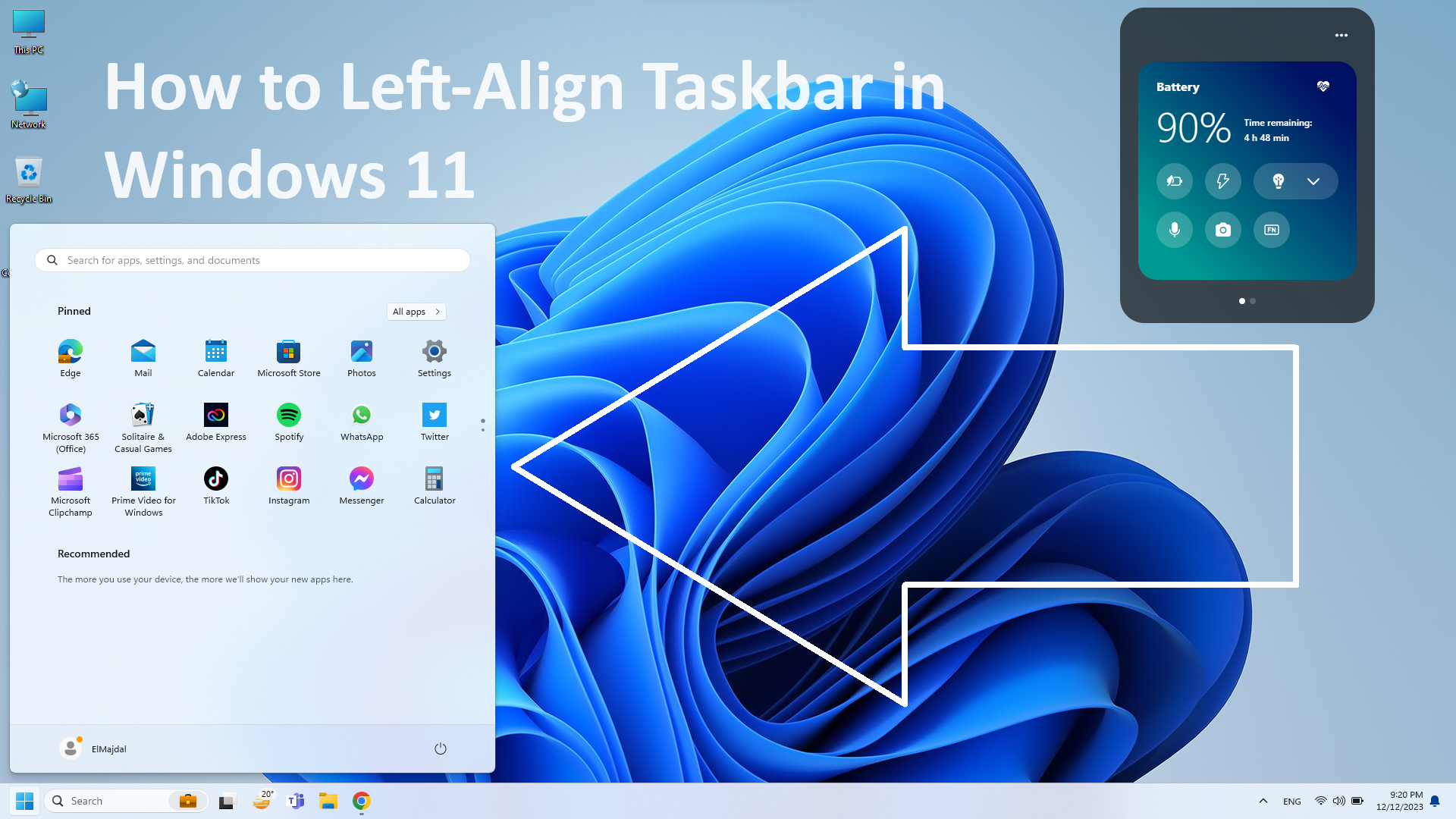
    How to Left-Align Taskbar in Windows 11

    2 Mins Read
    WhatsApp Facebook Twitter Telegram Reddit Email
    blank
    Share
    WhatsApp Facebook Twitter Telegram Reddit Email

    In Windows 11, the default Taskbar alignment has been updated to center its elements on the screen, providing a modern and streamlined appearance. This design choice facilitates accessibility to the Start menu and applications, particularly on larger monitors. However, recognizing the preference of some users for the classic left-aligned Taskbar seen in previous versions, Windows 11 includes a feature that allows you to restore this original alignment.

    To delve into the history, the centered alignment in Windows 11 marked a departure from the traditional left alignment. While this design decision aimed at improving user experience, the longstanding familiarity of a left-aligned Taskbar remained a preference for many.

    Fortunately, Windows 11 accommodates both preferences. In this guide, I will walk you through two methods to adjust the Taskbar alignment. Whether you favor the center-aligned layout or the classic left-aligned configuration, Windows 11 provides flexibility in personalizing your desktop experience.

    1. Right click the taskbar, and click Taskbar settings

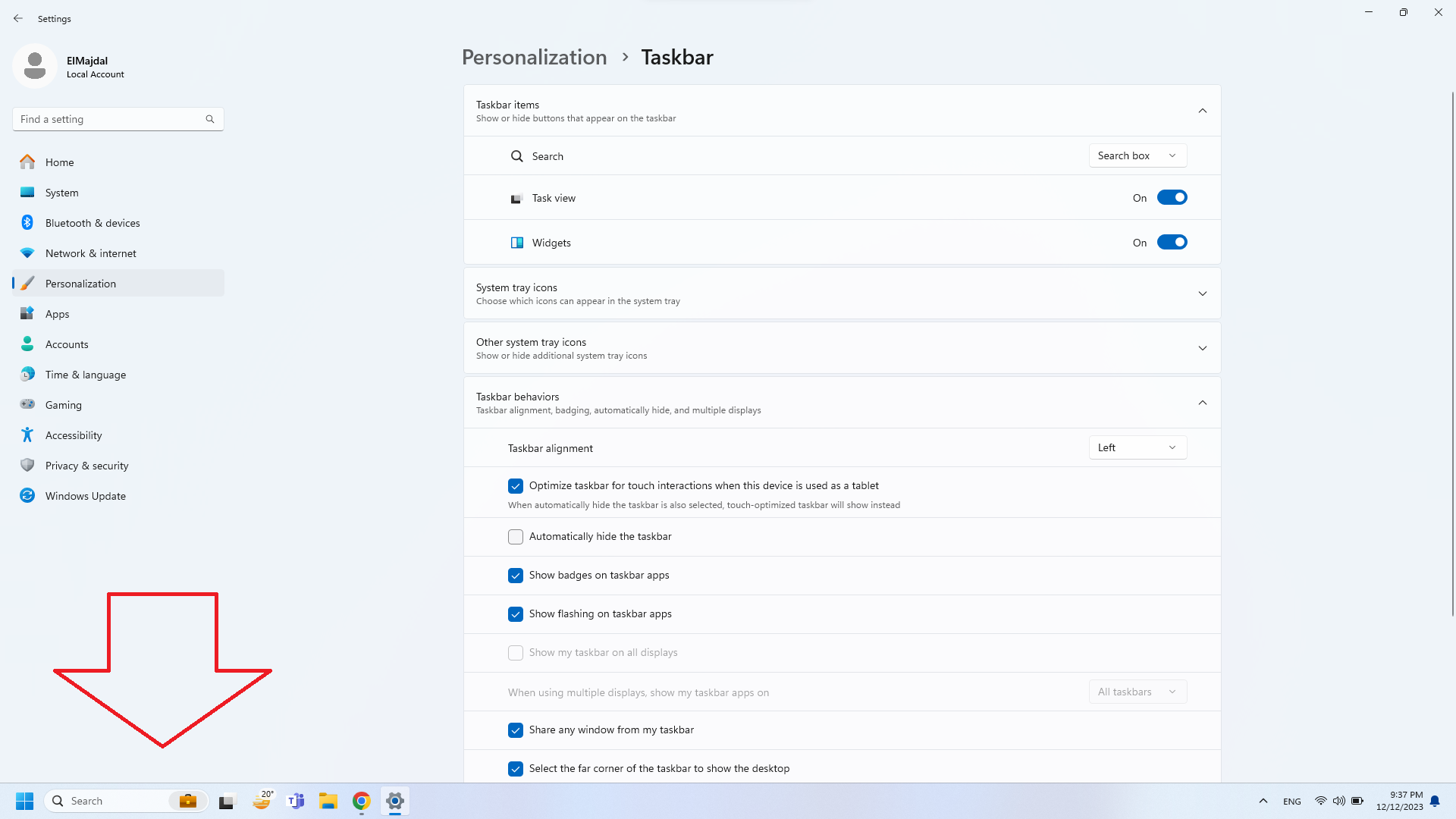
    2. The Personalization> Taskbar window will open. Click on Taskbar behaviors to expand it
    3. The option we are looking for is Taskbar alignment, by default its selected as Center. Click the dropdown list and choose Left
    4. The Taskbar’s Start button and other icons will be aligned to the left, similar to the layout in Windows 10

    At anytime, if you want to return the alignment to the center , go back to the same steps and choose Center


    Share. WhatsApp Facebook Twitter Telegram Reddit Email
    Previous ArticleChange Lid Close Action in Windows 11
    Next Article How To Remove Widgets From The Taskbar in Windows 11

    Related Article

    How To Check The Health Of Your Laptop’s Battery In Windows

    How to Show Hidden Files and Folders in Windows 11

    How To Set Up Fingerprint In Windows 11

    Latest Posts

    How To Enable Active Directory Recycle Bin On Windows Server

    How To Check The Health Of Your Laptop’s Battery In Windows

    How To Transfer FSMO Roles In Active Directory Using PowerShell

    How To Check Active Directory Forest And Domain Functional Level In Windows Server

    Advertisement

    For any Feedback, click on the Contact Us link

    Quick Links
    • Contact Us
    • Windows 11
    • Windows 8
    • Windows 10
    • Windows 7
    • Windows Server
    • Windows Server 2008
    • Exchange Server
    • macOS
    • ISA Server
    • Privacy Policy
    • Contact Us
    • Windows 11
    • Windows 8
    • Windows 10
    • Windows 7
    • Windows Server
    • Windows Server 2008
    • Exchange Server
    • macOS
    • ISA Server
    • Privacy Policy
    © ElMajdal 2007-2026

    Type above and press Enter to search. Press Esc to cancel.