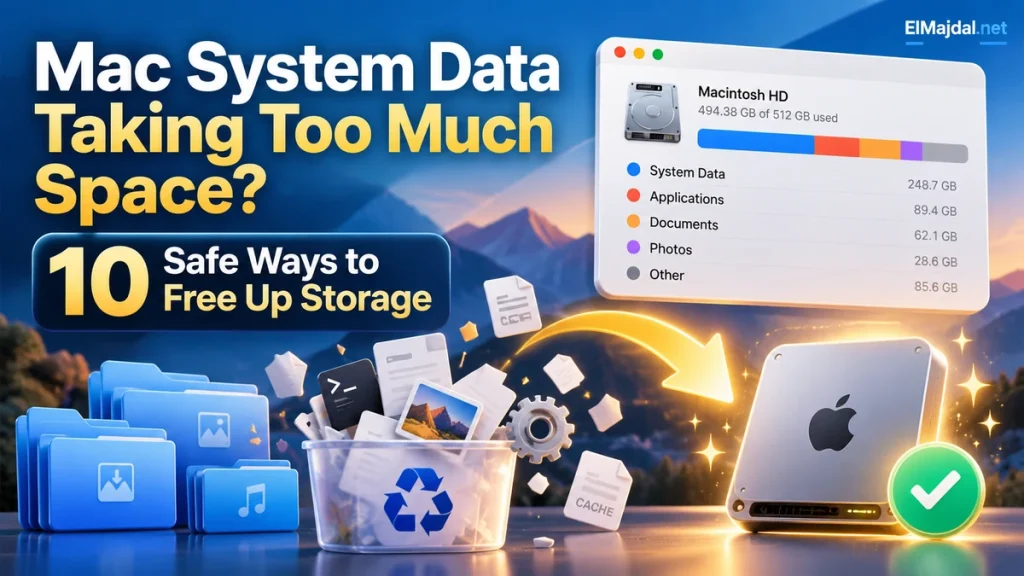
If your Mac shows a large System Data category, avoid deleting system folders at random. macOS groups caches, logs and resources it manages under this label, and some space changes automatically. Here are safe ways to investigate what is taking space.
Before you start: Save your work and back up important files before changing system or cloud settings. Menu names may differ between releases.
Step 1. Check your actual storage
Open Apple menu → System Settings → General → Storage. Wait for categories to calculate. Check available capacity in Finder too; System Data is a broad estimate, not one folder you can erase.
Step 2. Restart and check again
Restart your Mac to let temporary processes finish. Reopen Storage and check whether the size changes.
Step 3. Review Apple’s storage recommendations
In General → Storage, review recommendations such as Optimize Storage or Empty Trash Automatically. Read what each choice does before enabling it.
Step 4. Find large downloads
Open Finder → Downloads, switch to list view and sort by Size. Check installers, videos and duplicates. Move only files you recognize to Trash.
Step 5. Check the Applications folder
Sort Applications by size and uninstall apps you no longer need using their documented removal method. Do not delete unfamiliar system utilities.
Step 6. Remove old iPhone backups safely
On supported macOS releases, check connected iPhone backups through Finder device management and review the backup list. Delete only obsolete backups after confirming you have a current backup.
Step 7. Review Photos storage
If Photos uses significant storage, consider supported Optimize Mac Storage options with iCloud Photos. Verify your library is fully synced before changing any originals.
Step 8. Inspect trash and external drives
Review Trash before emptying. Deleted items may not free space until emptied; ensure you have no needed files inside.
Step 9. Check Time Machine snapshots carefully
Local snapshots can use storage that macOS normally manages automatically. If space remains critically low, consult Apple’s Time Machine guidance; do not remove snapshot or system files with random Terminal commands.
Step 10. Protect data before deeper repairs
Back up important files. If storage looks wrong or your Mac remains nearly full, use Disk Utility First Aid following Apple instructions, or contact Apple Support. Avoid third-party cleaners demanding unrestricted system permissions.
Frequently asked questions
Will these steps delete personal files? The initial checks do not require deleting personal data. Where cleanup or reset is involved, confirm backups and the effect on synced files before proceeding.
Related ElMajdal.net guides
Browse our macOS tutorials for related solutions.