Close Menu
ElMajdal.netElMajdal.net
    ElMajdal.netElMajdal.net
    Contact Us
    • Home
    • Windows
      • Windows 11
      • Windows 10
      • Windows 8
      • Windows 7
    • Servers
      • Windows Server
      • Windows Server 2008
      • Exchange Server
    • MAC OS
    • ISA/TMG
    ElMajdal.netElMajdal.net
    Home»Windows 11»Change Lid Close Action in Windows 11
    Windows 11

    Change Lid Close Action in Windows 11

    1 Min Read
    WhatsApp Facebook Twitter Telegram Reddit Email
    blank
    Share
    WhatsApp Facebook Twitter Telegram Reddit Email

    This guide will demonstrate how to customize the default response when you close your laptop lid on Windows 11.

    The lid switch close action determines the action the system will perform when the laptop lid is closed.

    Users have the option to designate one of the following actions:

    • Do Nothing: No action occurs when the laptop lid is closed.
    • Sleep: The system goes into sleep mode upon closing the laptop lid.
    • Hibernate: The system enters hibernation when the laptop lid is closed.
    • Shut Down: The system shuts down when the laptop lid is closed.


    Modify the Lid Close Action for the Existing Power Plan in the Power Options.

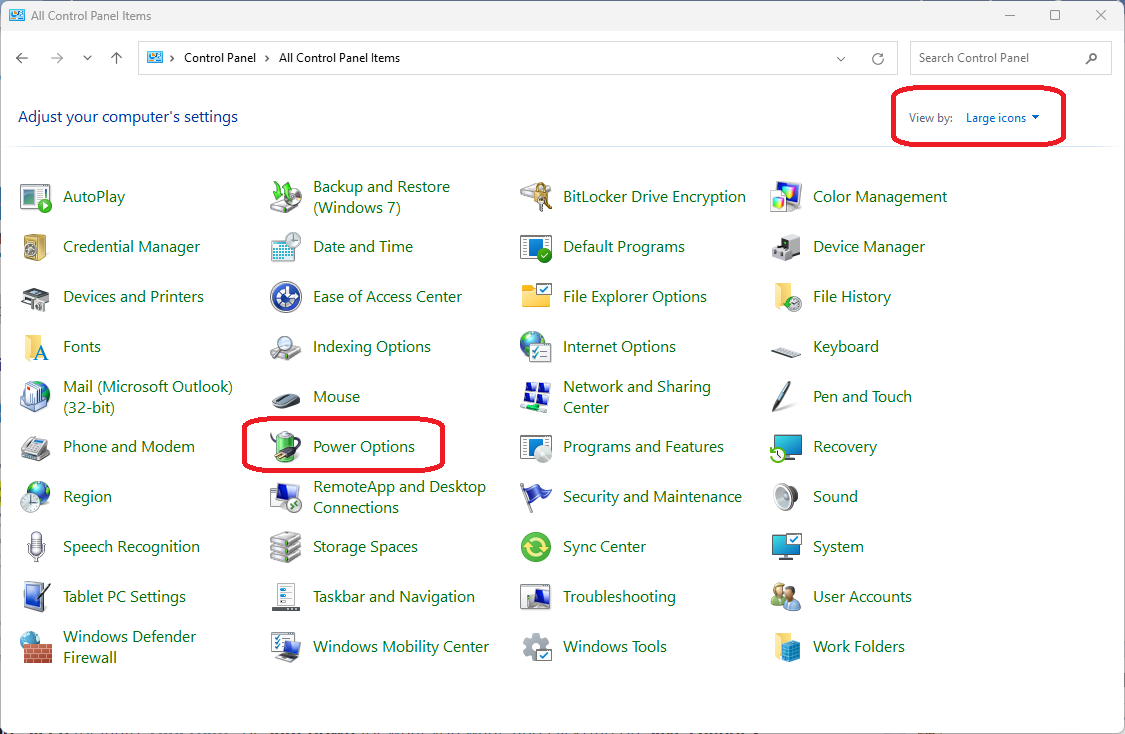
    1. Access the Control Panel and locate the Power Options icon. In case the Power Options icon is not visible, switch to the view for the Control Panel, and then select the Power Options icon.
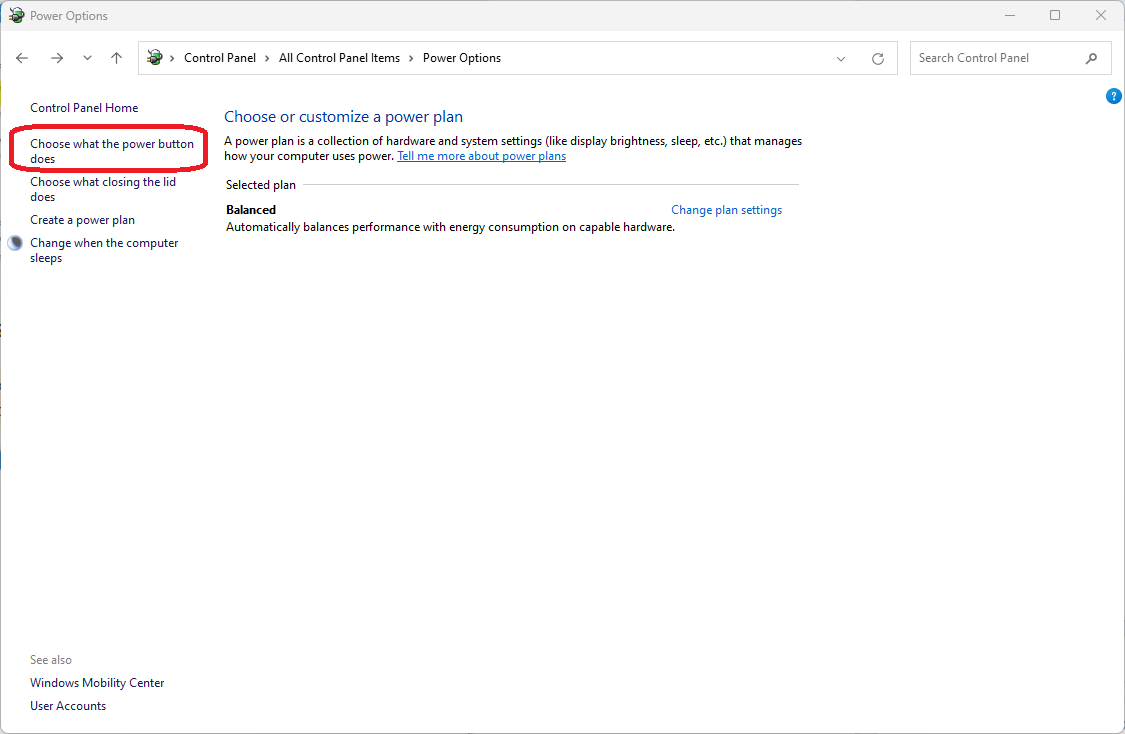
    2. Select the Choose what the power button does link in the left panel.
    3. In both the On battery and Plugged in drop-down menus under the When I close the lid setting, choose between Do nothing, Sleep (default), Hibernate, or Shut down based on your preference, and then click Save changes
    Share. WhatsApp Facebook Twitter Telegram Reddit Email
    Previous ArticleHow to Connect to Wi-Fi in Windows 11
    Next Article How to Left-Align Taskbar in Windows 11

    Related Article

    How To Check The Health Of Your Laptop’s Battery In Windows

    How to Show Hidden Files and Folders in Windows 11

    How To Set Up Fingerprint In Windows 11

    Latest Posts

    How To Enable Active Directory Recycle Bin On Windows Server

    How To Check The Health Of Your Laptop’s Battery In Windows

    How To Transfer FSMO Roles In Active Directory Using PowerShell

    How To Check Active Directory Forest And Domain Functional Level In Windows Server

    Advertisement

    For any Feedback, click on the Contact Us link

    Quick Links
    • Contact Us
    • Windows 11
    • Windows 8
    • Windows 10
    • Windows 7
    • Windows Server
    • Windows Server 2008
    • Exchange Server
    • macOS
    • ISA Server
    • Privacy Policy
    • Contact Us
    • Windows 11
    • Windows 8
    • Windows 10
    • Windows 7
    • Windows Server
    • Windows Server 2008
    • Exchange Server
    • macOS
    • ISA Server
    • Privacy Policy
    © ElMajdal 2007-2026

    Type above and press Enter to search. Press Esc to cancel.