

If you’re in search of information regarding Windows Server 2016-2022 and how to enable wireless Wi-Fi, refer to the following article: How To Enable Wireless (Wi-Fi) on Windows Server 2016/2019/2022
Introduction
You deployed Windows Server 2008 on your server machine, then you installed a Wireless Network Adapter to the machine, and tried to connect to a wireless network through the Wireless NIC but noticed that its status is always Disabled ! Or what about if you have a laptop with Windows Server 2008 installed on it, and you found out that its Wireless Connection is disabled and can not be enabled ! Are you wondering why ? Well, this is because by default, Wireless Networking is disabled in Windows Server 2008. To Enable it, you have to install its required Feature. In fact, this is the beauty of Windows Server 2008. Most Features/Services are disabled by default, if you do not need it , keep it disabled, and at any time, if you ever needed any feature/service , all you have to do is to install its required feature or enable its service.
If you opened Network Connections page, you will notice that the Wireless Network Connection is disabled by default. Even if you have tried to right click it and Enable, it will remain disabled.
( To open the Network Connections page, click on Start > Network, click on the Network and Sharing Center button, then under Tasks, click on Manage Network Connections )
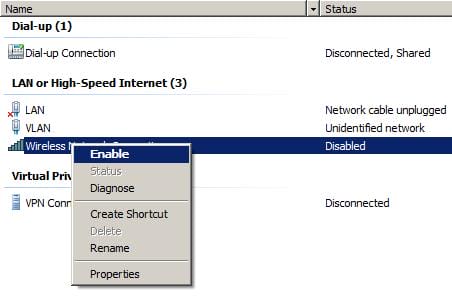
To enable Wireless Networking in Windows Server 2008, you have to install the Wireless LAN Service Feature
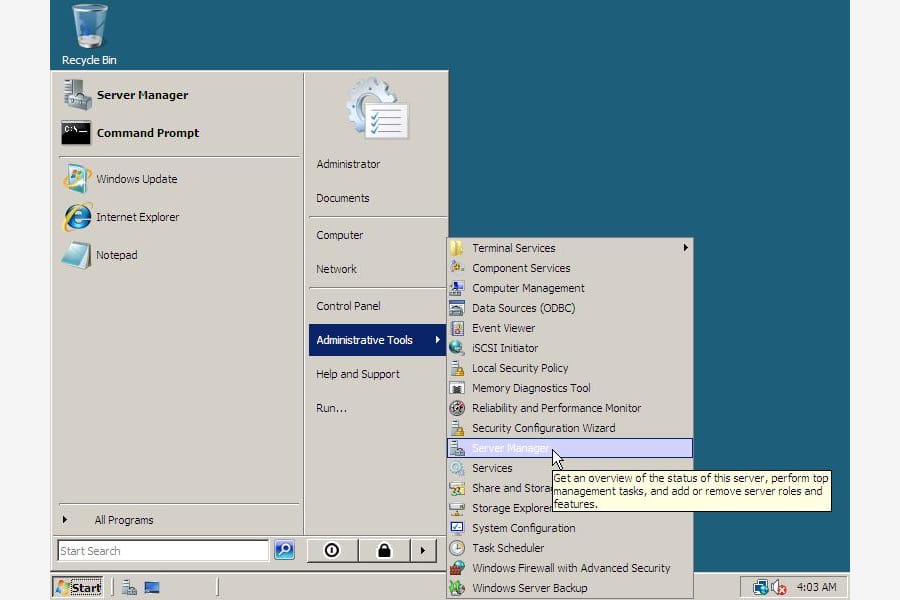
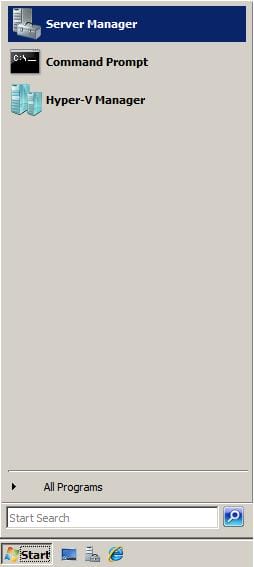
- Open Server Manager, Click on Start > Server Manager , or Start > Administrative Tools > Server Manager

- From the left side pane, click on Features

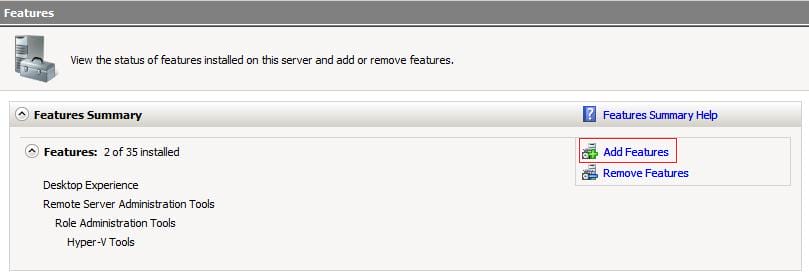
- From the Features page, click on Add Features

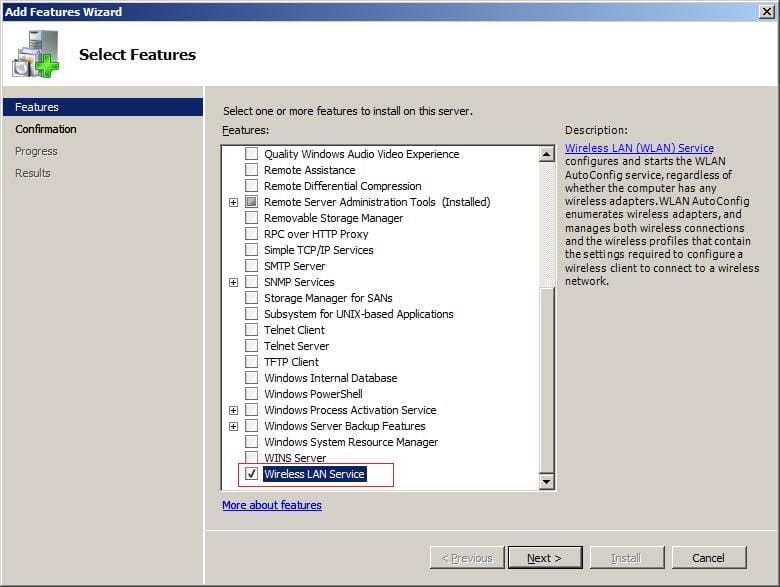
- From the list of available features, scroll down the list and enable the checkbox beside Wireless LAN Service, then click Next

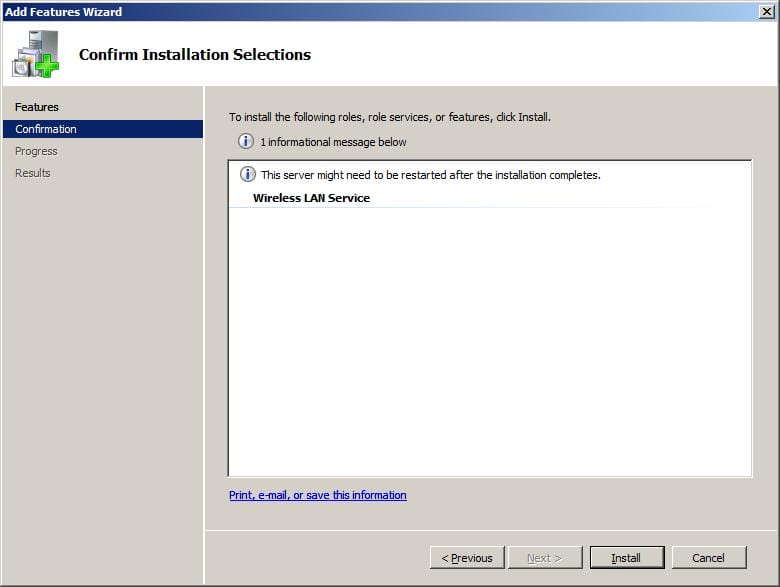
- On the Confirm Installation Selections page, click on Install
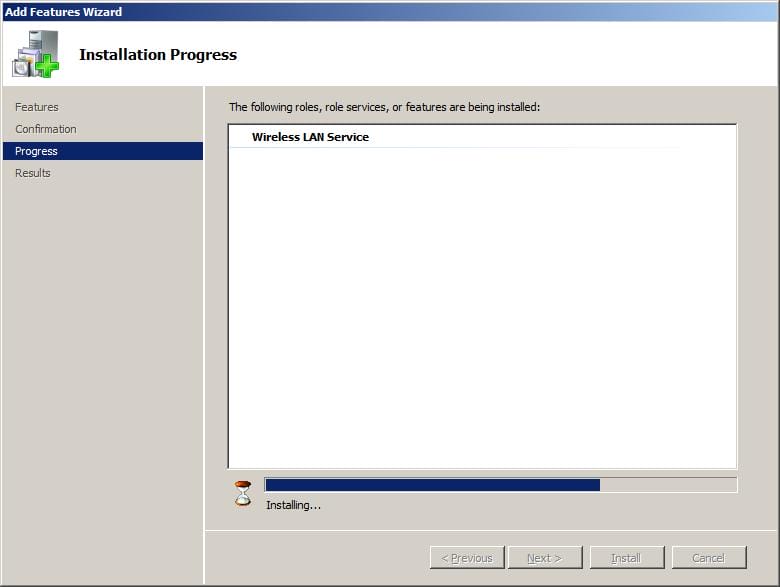
Installation will startOnce installation is completed, click on Close - Go back to the Network Connections page, and you will notice that the Wireless Network Connection’s status has changed from Disabled to Not Connected ( If it didn’t show as Not Connected, then right click on the Wireless Network Connection and click on Enable )

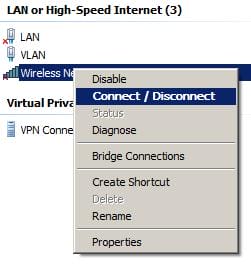
- To connect to a Wireless Network, right click on the Wireless Network Connection and click on Connect/Disconnect

- The list of available wireless connection(s) will be displayed. Choose any and click Connect. You might be requested to enter the shared key if any security settings are set on the Wireless Connection. Or you might need to setup the wireless connection manually, as some Wireless Networks hides their SSID.
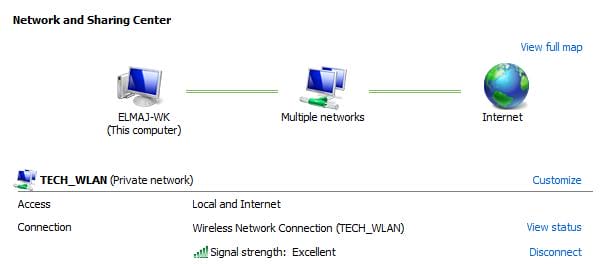
 As you can see, Wireless Networking is enabled now on my laptop.

 Installation will start
 Once installation is completed, click on Close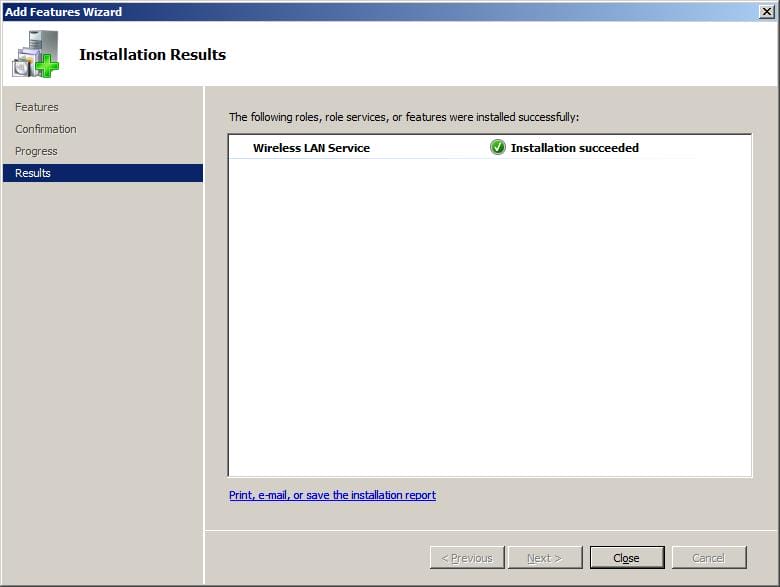


Summary
In Windows Server 2008, Wireless Networking remains disabled by default, necessitating the activation of its essential feature, known as the ‘Wireless LAN Service.’ This article delves into the intricacies of enabling wireless connectivity, guiding you through the step-by-step process required to install and configure the Wireless LAN Service.
Related Links
Using Windows Server 2008 as a Workstation
How To Enable Wireless (Wi-Fi) on Windows Server 2016/2019/2022