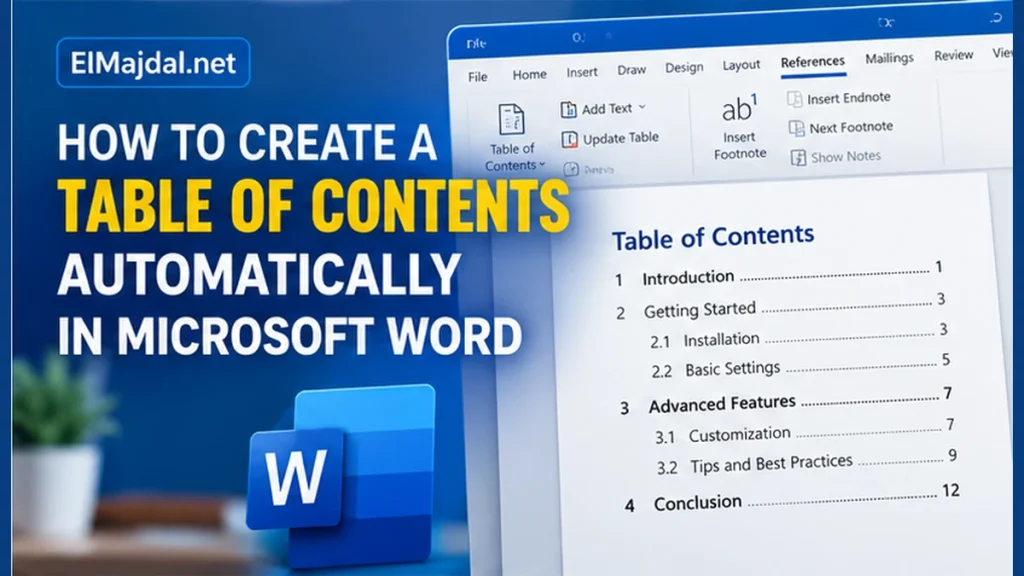
A table of contents helps readers navigate long assignments, reports, manuals, and proposals. Microsoft Word can generate one automatically from the headings in your document, and update page numbers when your content changes.
1. Prepare your Word document
Open the document and identify major sections such as Introduction, Methodology, Results, and Conclusion. Avoid manually typing a table of contents—the automatic feature is easier to maintain.
2. Apply Heading 1 to main sections
Select the first major section title. On the Home tab, find the Styles group and select Heading 1. Repeat for every main section. Simply enlarging or bolding text does not make it an actual heading.
3. Apply Heading 2 and Heading 3 to subsections
Use Heading 2 for sections nested under a Heading 1, and Heading 3 for smaller subsections. Keep the heading hierarchy consistent. This also improves document accessibility and navigation.
4. Insert the automatic table of contents
Place your cursor where you want the contents page, commonly after the cover page. In desktop Word, choose References → Table of Contents and select an Automatic Table layout. Word builds the list from recognized heading styles.
5. Update the table after editing
After adding sections or moving text, click inside the table and choose Update Table (or References → Update Table). Choose Update page numbers only when titles are unchanged, or Update entire table when you added or renamed headings.
6. Customize the table’s appearance
Open References → Table of Contents → Custom Table of Contents where available. Choose the number of heading levels, whether to show page numbers, and tab leaders (the dots between title and page). Word for the web may provide fewer customization options than desktop Word.
7. Fix missing headings
If a section doesn’t appear, check whether it uses an actual Heading style. Check the configured heading levels in the table. Reapply Heading 1 or Heading 2 as appropriate, then choose Update entire table.
8. Prevent common formatting problems
Use the built-in styles consistently, avoid typing page numbers manually, and check the final table before exporting to PDF. If you need a page break for the contents page, use Insert → Page Break rather than pressing Enter repeatedly.
Frequently asked questions
Can I generate a table of contents in Word for the web?
Feature availability varies by version and account. The desktop app offers the most complete control. If a command is missing in the browser, use Open in Desktop App when available.
Will Word automatically update the contents when I print?
For accuracy, update the entire table and check page numbers manually before printing or exporting.
Related tutorials
Explore more Microsoft 365 tutorials on ElMajdal.net and our guide to recovering deleted emails in Outlook.
Microsoft references
Insert a table of contents in Word · Update a table of contents