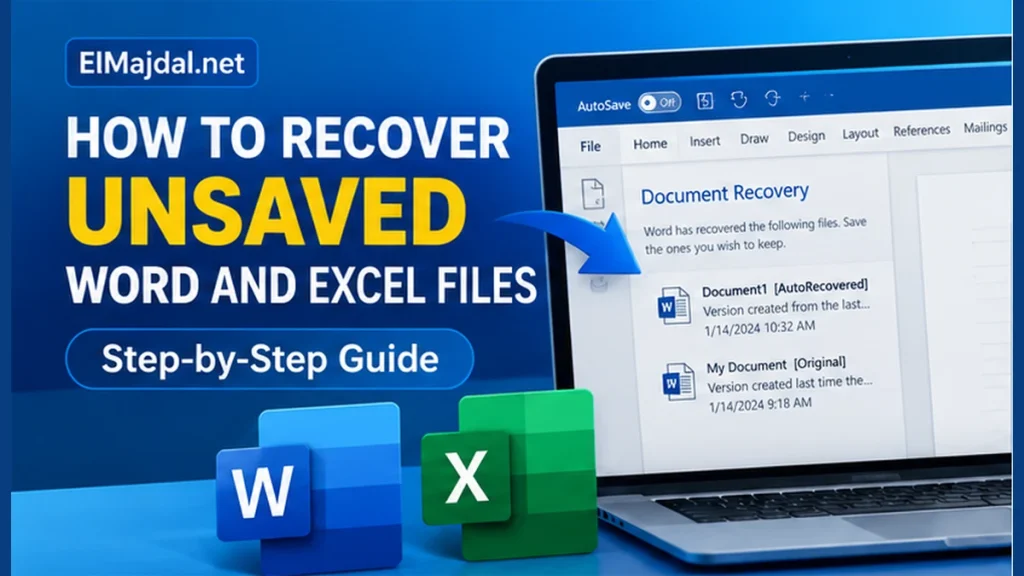
Closed Word or Excel without saving, or lost work after a crash? Before recreating everything, try the built-in recovery tools in Microsoft 365. The available methods depend on whether the file was saved before, whether AutoRecover was enabled, and whether you used OneDrive or SharePoint.
1. Reopen Word or Excel after a crash
Launch the application again. If Document Recovery appears, review the available versions, open the newest useful copy, and immediately use File → Save As or Save a Copy to give it a permanent filename. Do not assume the recovery pane will always appear.
2. Recover an unsaved Word document on Windows
Open Word → File → Info → Manage Document → Recover Unsaved Documents. Select a matching file if available, open it, and save it immediately. Different Microsoft 365 builds may label the button differently.
3. Recover an unsaved Excel workbook on Windows
Open Excel → File → Info → Manage Workbook → Recover Unsaved Workbooks. Open an available recovery file, then choose Save As. Unsaved-document recovery isn’t guaranteed: temporary files may be removed and AutoRecover only saves periodically.
4. Check AutoRecover settings for the future
In the Windows desktop version, choose File → Options → Save. Review Save AutoRecover information every and Keep the last AutoRecovered version if I close without saving when present. AutoRecover helps with unexpected interruptions but is not a replacement for saving your document.
5. Find earlier versions in OneDrive or SharePoint
If the file was already saved to OneDrive or SharePoint, open it and use File → Info → Version History or open the file’s Version history from OneDrive. Review timestamps and restore or copy the version you need. Version History works for stored files; it cannot retrieve a document that was never saved anywhere.
6. Check the OneDrive Recycle Bin
If the saved file itself is missing, sign in to OneDrive or your organization’s OneDrive portal and check the Recycle bin. Select and restore the missing file if it is still available. Deleted-file retention depends on account type and policies.
7. What about Word and Excel on Mac?
After a crash, reopen the app and look for a recovered document. For files saved to OneDrive, use Version History. On macOS, AutoRecovery locations and menus differ across Office versions, so avoid changing or deleting recovery folders before making a copy.
8. If none of these methods works
Check your Recent files list, OneDrive and SharePoint storage, and any backups (such as File History or Time Machine). Do not install unknown “Office recovery” programs that request unrestricted access to documents. Recovery cannot be guaranteed, particularly if the work was never saved and no AutoRecover version exists.
Frequently asked questions
Can I recover work after clicking Don’t Save?
Possibly, but only if an unsaved recovery copy still exists. Try the Recover Unsaved Documents or Workbooks options immediately.
Is AutoSave the same as AutoRecover?
No. AutoSave saves eligible cloud-hosted files continuously, while AutoRecover periodically creates recovery information for interruptions.
Related tutorials
Explore more Microsoft 365 tutorials on ElMajdal.net and our guide to recovering deleted emails in Outlook.
Microsoft references
Recover Word files and documents · About AutoSave in Microsoft 365