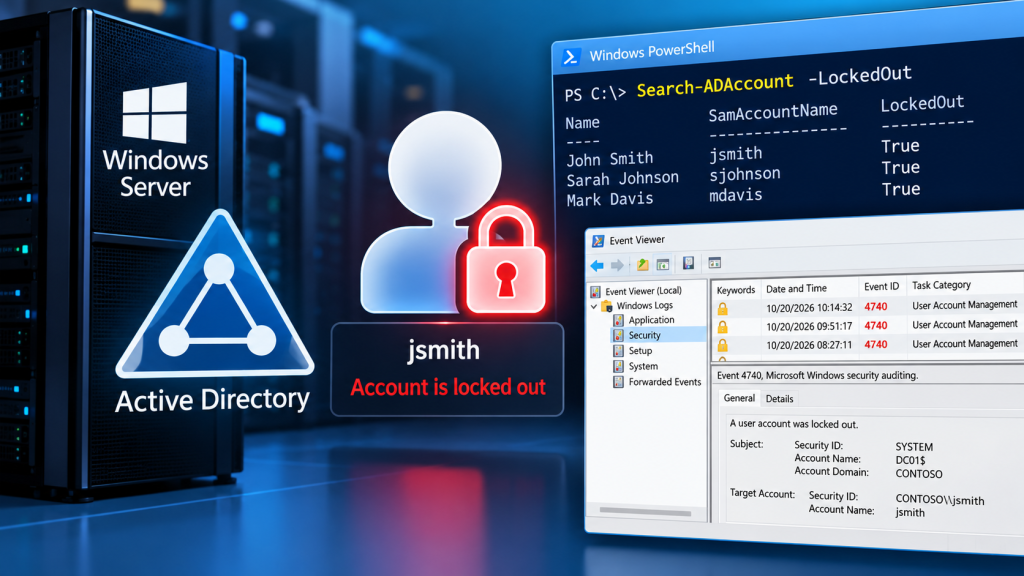
Repeated Active Directory account lockouts can interrupt sign-ins across Windows, VPN, Remote Desktop, Exchange, and other domain-connected services. The most effective approach is to identify which domain controller recorded the lockout, find the source computer, and then fix the credential problem instead of simply unlocking the user repeatedly.
Before you begin
Use an account with permission to read Active Directory and relevant security logs. The PowerShell examples require the ActiveDirectory module (available through RSAT or on appropriate Windows Server installations). Security auditing and event retention must be configured for historical events to be available. Replace example usernames, computers, and domain controllers with your environment’s values.
1. Check whether the AD account is locked
On a domain-connected management computer, open PowerShell and import the Active Directory module:
Import-Module ActiveDirectory
Get-ADUser -Identity 'jsmith' -Properties LockedOut,LastBadPasswordAttempt,BadPwdCount |
    Select-Object Name,SamAccountName,LockedOut,LastBadPasswordAttempt,BadPwdCount
Interpretation: LockedOut shows the account’s current lockout state as seen by the queried domain controller. BadPwdCount is not a reliable domain-wide total because failed-password counters can differ between domain controllers. If the account appears unlocked, the lockout may already have cleared or been resolved.
2. Find currently locked-out accounts
Use Search-ADAccount to find locked accounts:
Search-ADAccount -LockedOut -UsersOnly |
    Select-Object Name,SamAccountName,DistinguishedName
For larger environments, specify the appropriate search base or server if necessary. This command lists accounts but does not identify the device responsible for failed sign-in attempts.
3. Find Event ID 4740 on domain controllers
Windows Security Event 4740 — A user account was locked out is the main event to investigate. It commonly includes the Caller Computer Name, which can point toward the machine that initiated the lockout. The field may be blank or insufficient, so treat it as a lead rather than definitive proof.
First, query a known domain controller for recent events:
$dc = 'DC01.contoso.com'
Get-WinEvent -ComputerName $dc -FilterHashtable @{
    LogName   = 'Security'
    Id        = 4740
    StartTime = (Get-Date).AddHours(-24)
} | Select-Object TimeCreated, MachineName, Message
If you have multiple domain controllers, review the relevant security logs across them. Remote event log permissions and firewall rules must allow the query.
4. Extract the locked username and caller computer
The XML event fields provide a structured result without relying on the language of the event’s descriptive text:
$dc = 'DC01.contoso.com'
Get-WinEvent -ComputerName $dc -FilterHashtable @{
    LogName   = 'Security'
    Id        = 4740
    StartTime = (Get-Date).AddHours(-24)
} | ForEach-Object {
    $eventXml = [xml]$_.ToXml()
    $fields = @{}
    foreach ($entry in $eventXml.Event.EventData.Data) {
        $fields[$entry.Name] = $entry.'#text'
    }
    [pscustomobject]@{
        TimeCreated      = $_.TimeCreated
        DomainController = $_.MachineName
        LockedAccount    = $fields['TargetUserName']
        CallerComputer   = $fields['CallerComputerName']
    }
} | Sort-Object TimeCreated -Descending
Important: Event 4740 does not always contain enough information to identify the true origin. You may also need related authentication events such as 4771 (Kerberos pre-authentication failure), 4776 (NTLM credential validation), and 4625 (failed logon), where available. Their presence and details depend on audit policy and authentication method.
5. Investigate the source of repeated failed logins
After finding a likely source device, investigate it systematically. Common causes include:
- Outdated saved credentials: Windows Credential Manager entries, mapped network drives, VPN clients, or Microsoft Outlook profiles.
- Scheduled tasks: A task configured with the user’s old password.
- Windows services: A service configured to run using the affected domain account.
- Disconnected sessions: An old RDP session or an application still submitting outdated credentials.
- Mobile or remote clients: VPN, Wi-Fi, or other authentication clients retrying with an old password.
On the suspected Windows machine, you can inspect scheduled tasks for an account name:
Get-ScheduledTask |
    Where-Object { $_.Principal.UserId -like '*jsmith*' } |
    Select-Object TaskName,TaskPath,@{Name='RunAs';Expression={$_.Principal.UserId}}
Inspect services for the same account:
Get-CimInstance Win32_Service |
    Where-Object { $_.StartName -like '*jsmith*' } |
    Select-Object Name,DisplayName,StartName,State
These commands only display configuration. Fix a saved password, task, or service configuration only after confirming the source and following your organization’s change procedures.
6. Unlock the user after fixing the cause
When you have investigated and corrected the recurring authentication problem, an authorized administrator can unlock the account:
Unlock-ADAccount -Identity 'jsmith'Verify the result:
Get-ADUser -Identity 'jsmith' -Properties LockedOut |
    Select-Object SamAccountName,LockedOut
Caution: Unlocking is not a permanent fix if an application or device continues using an incorrect password. The account can immediately lock again. Do not weaken the domain lockout policy to work around the problem.
7. Review account lockout policy
Use the effective domain policy as a starting point:
Get-ADDefaultDomainPasswordPolicy |
    Select-Object LockoutThreshold,LockoutDuration,LockoutObservationWindow
Some organizations use fine-grained password policies for particular users or groups. Check the resulting policy for the affected user when applicable:
Get-ADUserResultantPasswordPolicy -Identity 'jsmith'A null result can mean that the user is governed by the default domain password policy rather than a fine-grained one.
Quick troubleshooting checklist
- Confirm the account is locked and record the approximate time.
- Check Event ID 4740 on the domain controllers.
- Record the caller computer if it appears.
- Correlate authentication failures and examine the suspected endpoint.
- Correct outdated credentials in services, tasks, sessions, or applications.
- Unlock the account only when authorized and monitor for recurrence.
Frequently asked questions
Why does an AD account lock immediately after unlocking?
A device or background process may still be retrying an obsolete password. Check scheduled tasks, services, cached credentials, VPN clients, and related Security events.
Which domain controller should I check?
The domain controller that processed or recorded the lockout is useful, but in multi-controller environments you may need to query several controllers and correlate timestamps.
Does Event ID 4740 always reveal the source computer?
No. The Caller Computer Name can be empty or misleading. Correlate additional logs before concluding which device or service is responsible.