
Close Menu
ElMajdal.netElMajdal.net
    ElMajdal.netElMajdal.net
    Contact Us
    • Home
    • Windows
      • Windows 11
      • Windows 10
      • Windows 8
      • Windows 7
    • Servers
      • Windows Server
      • Windows Server 2008
      • Exchange Server
    • MAC OS
    • ISA/TMG
    ElMajdal.netElMajdal.net
    Home»ISA Server»ISA Firewall Quick Tip : Assigning the Same Static IP for a VPN Client
    ISA Server

    ISA Firewall Quick Tip : Assigning the Same Static IP for a VPN Client

    1 Min Read
    WhatsApp Facebook Twitter Telegram Reddit Email
    blank
    VPN tunnel
    Share
    WhatsApp Facebook Twitter Telegram Reddit Email

    Introduction

    You can assign a specific IP to each VPN Client, so that each time he/she establishes a VPN connection to your ISA server, he/she will receive the same IP Address.

    Configuration 

    1. Click Start, point to Administrative Tools , and then click Active Directory Users and Computers

    2. Then go to the Organization Unit (OU) that contains the user you want to assign the same static IP each time he/she establishes a VPN Connection

    3. Right Click the user, click on Properties

    4. Go to the Dial-in tab for the user.  Enable the checkbox beside Assign a Static IP Address, as shown in the following image
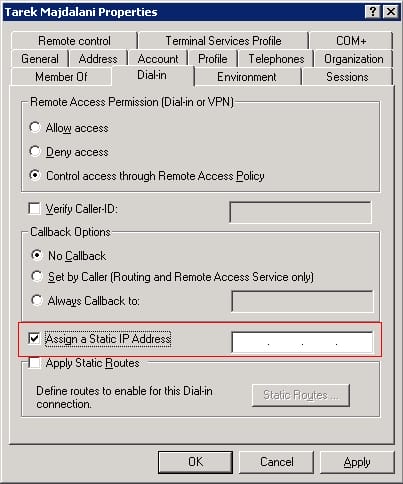
    5. Enter the IP address you want to assign for this user. Once you enter it , click on OK.

    Share. WhatsApp Facebook Twitter Telegram Reddit Email
    Previous ArticleISA Firewall Quick Tip : Internal DNS Forwarding Through ISA Server 2004/2006
    Next Article ISA Firewall Quick Tip : Creating Detailed Reports Using ISA Server 2006 and Excel

    Related Article

    ISA 2004, ISA 2006 and TMG Server 2010 Version Numbers

    Enabling HTTPS Inspection With Forefront TMG Server 2010

    Search Feature For TMG 2010 Firewall Policies

    Latest Posts

    How To Enable Active Directory Recycle Bin On Windows Server

    How To Check The Health Of Your Laptop’s Battery In Windows

    How To Transfer FSMO Roles In Active Directory Using PowerShell

    How To Check Active Directory Forest And Domain Functional Level In Windows Server

    Advertisement

    For any Feedback, click on the Contact Us link

    Quick Links
    • Contact Us
    • Windows 11
    • Windows 8
    • Windows 10
    • Windows 7
    • Windows Server
    • Windows Server 2008
    • Exchange Server
    • macOS
    • ISA Server
    • Privacy Policy
    • Contact Us
    • Windows 11
    • Windows 8
    • Windows 10
    • Windows 7
    • Windows Server
    • Windows Server 2008
    • Exchange Server
    • macOS
    • ISA Server
    • Privacy Policy
    © ElMajdal 2007-2026

    Type above and press Enter to search. Press Esc to cancel.