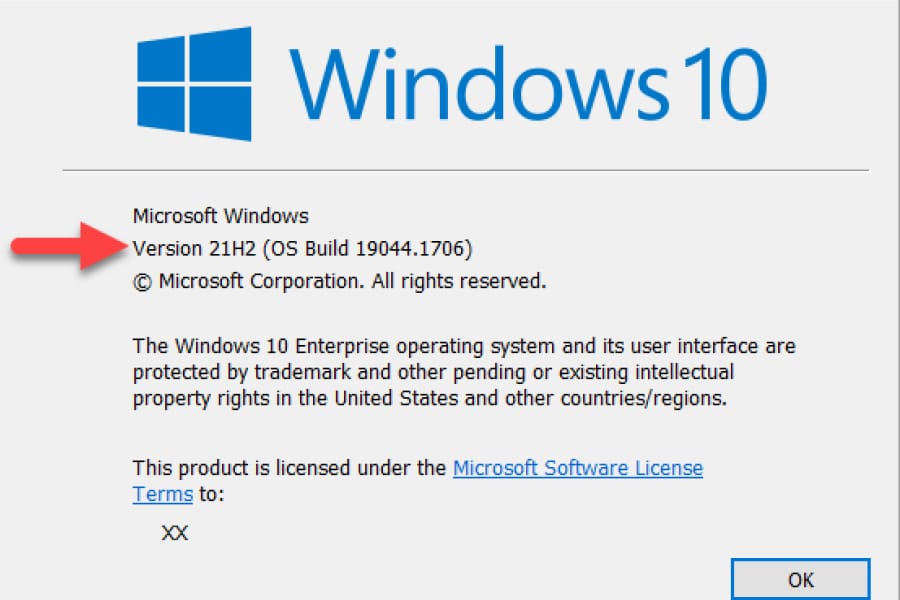
Throughout Windows history, build numbers served as markers for significant updates. Users commonly referenced Windows versions by major names like Vista, 7, or 8, and service packs, such as Windows 7 Service Pack 1, denoted substantial improvements.
The landscape changed with Windows 10. Microsoft departed from service packs, opting for a new approach. Instead, they adopted a system of releasing two substantial builds each year. This shift reflects a dynamic update strategy, ensuring users receive continuous improvements and features without the traditional reliance on periodic service packs. The move towards more frequent, feature-rich builds signifies Microsoft’s commitment to keeping Windows 10 constantly evolving and up-to-date.
The final version of Windows 10 is version 22H2, which will reach end of servicing on October 14, 2025.
There are different editions of Windows 10 with different features, to determine the build of Windows 10 that is installed, follow these steps.
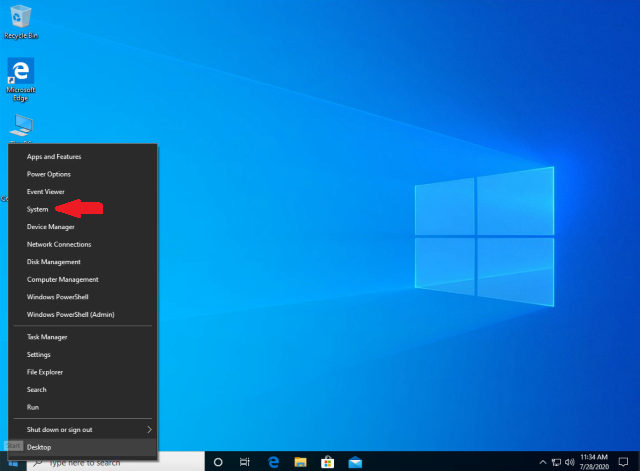
1. Right-click on Start Button and click System
2. The About page will open, scroll down to see more details
Under the Device specifications , you can see if your Windows 10 is 32-bit operation system or a 64-bit operation system
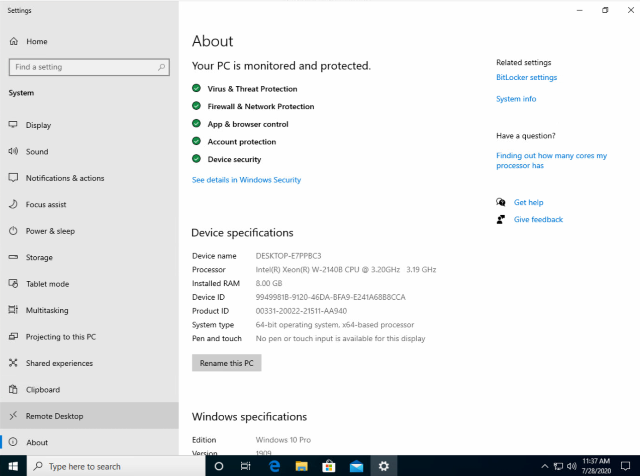
3. Under the Windows Specifications , you will have information related to Edition, Version and OS Build
 Edition: The “Edition” line tells you which edition of Windows 10 you’re using — Windows 10 Home, Professional, Enterprise, or Education. If you’d like to upgrade to Windows 10 Professional, you can upgrade to the Professional edition from within Windows 10. Switching to Windows 10 Enterprise or Education editions will require a complete reinstall and a special key that isn’t made available to normal home Windows users.
Build Number: Look at the “Version” and “OS Build” lines. If you have the original version of Windows 10, you’ll just see “OS Build 10240”. This was the initial release of Windows 10. If you have the “November Update” version of Windows 10 — Windows 10’s first big update— you’ll see a new version number scheme here. It’ll say “Version 1511 (OS Build 10576.29)”.
The “1511” is the key. This number identifies that you’re using the build of Windows 10 released in November (the 11th month) of 2015.
In my case, my Windows 10 is version 1909 which is the November 2019 Update ( Please check below table )
64-bit or 32-bit: The “System type” line tells you whether you’re using the 32-bit version of Windows 10 or the 64-bit version. It also tells you whether your PC is compatible with the 64-bit version or not.
For example, “64-bit operating system, x64-based processor” indicates you’re using a 64-bit version of Windows 10 on a 64-bit processor. “32-bit operating system, x64-based processor” indicates you’re using a 32-bit version of Windows 10, but you could install the 64-bit version on your hardware if you preferred.
Here is a table summarizing Windows 10 versions
| Version | Codename | Marketing name | Build | Release date | Supported until | ||||
| GAC (General Availability Channel) | LTSC ( Long-Term Servicing Channel) | Mobile | |||||||
|
| Enterprise | IoT Enterprise | ||||||
| 1507 | Threshold | — | 10240 | July 29, 2015 | May 9, 2017 | October 14, 2025 | — | ||
| 1511 | Threshold 2 | November Update | 10586 | November 10, 2015 | October 10, 2017 | — | January 9, 2018 | ||
| 1607 | Redstone | Anniversary Update | 14393 | August 2, 2016 | April 10, 2018 | April 9, 2019 | October 13, 2026 | October 9, 2018 | |
| 103 | Redstone 2 | Creators Update | 15063 | April 5, 2017 | October 9, 2018 | October 8, 2019 | — | June 11, 2019 | |
| 1709 | Redstone 3 | Fall Creators Update | 16299 | October 17, 2017 | April 9, 2019 | October 13, 2020 | January 14, 2020 | ||
| 1803 | Redstone 4 | April 2018 Update | 17134 | April 30, 2018 | November 12, 2019 | May 11, 2021 | — | ||
| 1809 | Redstone 5 | October 2018 Update | 17763 | November 13, 2018 | November 10, 2020 | January 9, 2029 | |||
| 1903 | 19H1 | May 2019 Update | 18362 | May 21, 2019 | December 8, 2020 | — | |||
| 1909 | 19H2 | November 2019 Update | 18363 | November 12, 2019 | May 11, 2021 | May 10, 2022 | |||
| 2004 | 20H1 | May 2020 Update | 19041 | May 27, 2020 | December 14, 2021 | ||||
| 20H2 | 20H2 | October 2020 Update | 19042 | October 20, 2020 | May 10, 2022 | May 9, 2023 | |||
| 21H1 | 21H1 | May 2021 Update | 19043 | May 18, 2021 | December 13, 2022 | ||||
| 21H2 | 21H2 | November 2021 Update | 19044 | November 16, 2021 | June 13, 2023 | June 11, 2024 | January 12, 2027 | January 13, 2032 | |
| 22H2 | 22H2 | 2022 Update | 19045 | October 18, 2022 | October 14, 2025 | — | |||