Introduction
The taskbar on your desktop is located on the bottom of the screen by default in Windows 11.
This tutorial will show you how to enable or disable automatically hide the taskbar for your account in Windows 11.
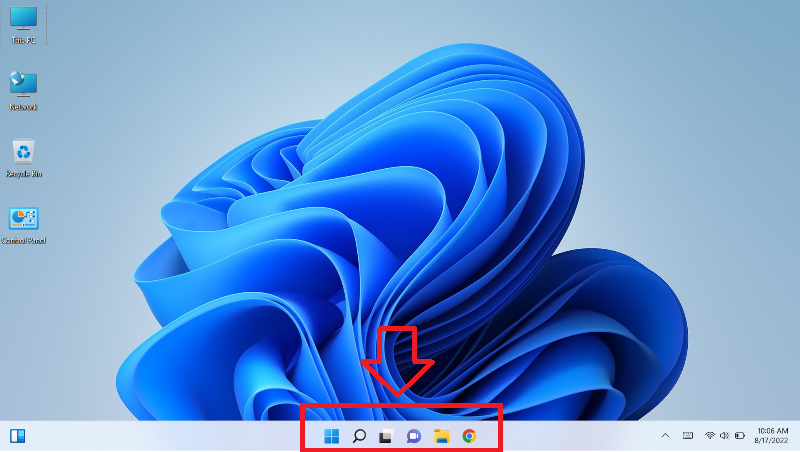
By default, the taskbar is available in the bottom center of the screen as seen below.
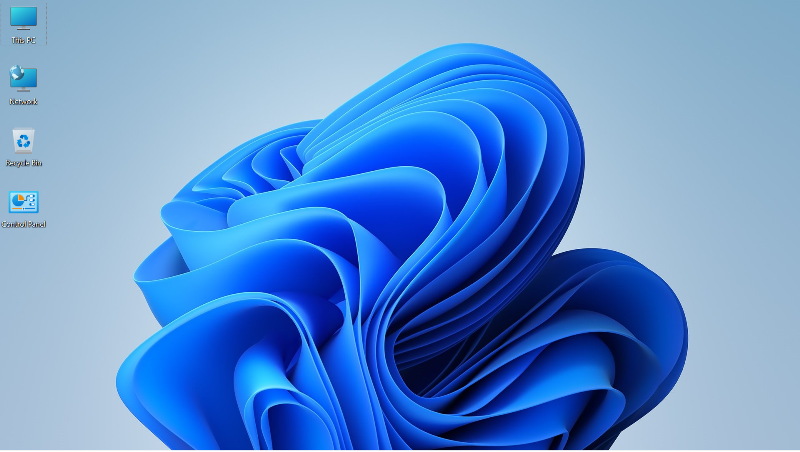
If you enabled automatically hide the taskbar, then the screen would look like below
-
Open Settings (Win+I).
- Click on Personalization on the left side, and click on Taskbar on the right si

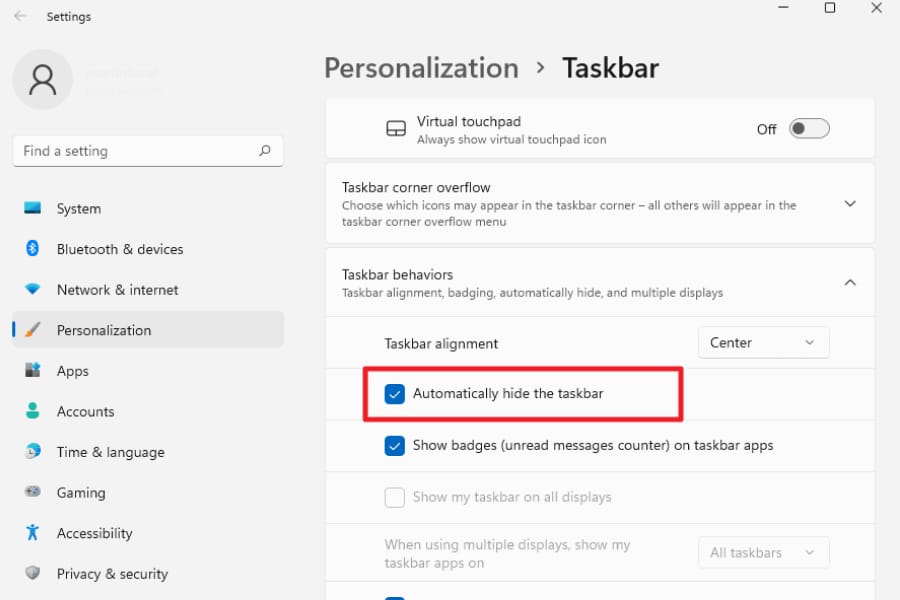
3. Click on Taskbar behaviors on the right side to expand it
4. Check (enable) Automatically hide the taskbar
You can show the taskbar on demand by:
-
Hover pointer on border of taskbar location.
-
Press the Win + T keys.
-
On a touch screen, swipe inwards from the border (ex: bottom) of taskbar location.
To unhide the taskbar, repeat the above steps, and uncheck the option Automatically hide the taskbar