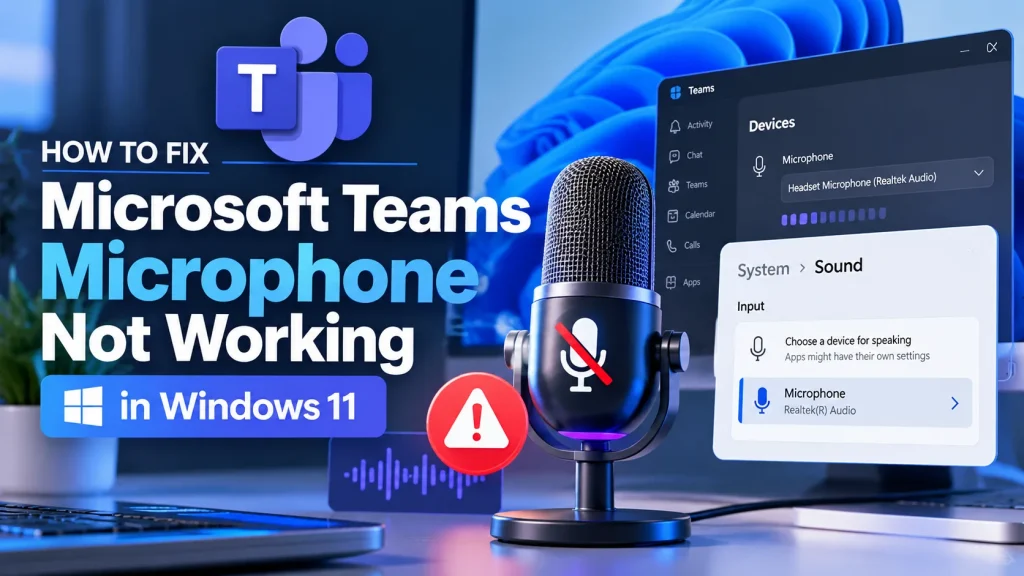
Microsoft Teams can show a muted microphone, fail to detect your headset, or leave colleagues unable to hear you even when other Windows apps work. The fastest way to identify the problem is to test your microphone in Windows first, then verify the input device and permissions inside Teams.
Quick fix: In Teams, open Settings → Devices, select the correct microphone, and make a test call if that option is available. Then check Windows 11 Settings → Privacy & security → Microphone and allow microphone access for desktop apps.
1. Check mute controls and the physical microphone
- Check the microphone button in your Teams meeting controls. If muted, select it to unmute.
- Inspect any physical mute switch or button on your headset, USB microphone, or laptop.
- Disconnect and reconnect the headset. If it uses a USB hub, test a direct USB port.
- Close competing audio applications that may be holding the device.
If you are joining a meeting managed by an organizer, your microphone may have been disabled through meeting permissions; ask the organizer if you cannot unmute.
2. Select the correct microphone in Microsoft Teams
- Open the Teams desktop application.
- Select Settings and more (…) near your profile, then Settings → Devices. Depending on your Teams version, audio settings may also be accessible through the meeting’s device menu.
- Under Microphone, choose the device you intend to use—not a webcam microphone or an unused headset.
- Speak and check whether the audio indicator responds. Use Make a test call where available; availability can vary by account and Teams version.
Screenshot to capture: Teams → Settings → Devices, with the Microphone dropdown and selected device clearly visible. Do not include account names or confidential meeting information.
3. Enable microphone permissions in Windows 11
- Press Win + I to open Settings.
- Go to Privacy & security → Microphone.
- Turn on Microphone access and Let apps access your microphone where applicable.
- Ensure Let desktop apps access your microphone is enabled for the installed Teams desktop app.
- Close and reopen Teams after changing access settings.
The Windows privacy page may distinguish Microsoft Store apps from desktop applications. The installed desktop Teams client generally depends on desktop-app microphone access.
Screenshot to capture: Windows 11 Microphone privacy page displaying the access switches.
4. Test the microphone in Windows Sound settings
- Open Settings → System → Sound.
- Under Input, choose the intended microphone.
- Speak and watch the input-volume meter; on supported devices, open its properties and use the microphone test.
- Check the input volume and increase it if it is very low.
- If the meter does not react, switch ports or headsets and troubleshoot the device in Windows before returning to Teams.
Screenshot to capture: Settings → System → Sound → Input, showing the selected microphone and test area.
5. Fix microphone access in Teams on the web
If you use Teams in Edge or Chrome, the browser needs microphone permission independently of the Windows desktop client.
- Open Teams in the browser and join or preview a meeting.
- Select the icon beside the address bar showing site permissions, then allow microphone access for the Teams site.
- In browser settings, check Site settings → Microphone (wording varies by browser) and verify the correct default input device.
- Reload the Teams tab, and test again.
A blocked microphone icon in the address bar often signals a browser permission issue.
6. Troubleshoot Bluetooth and USB headsets
- For Bluetooth, verify that the headset is connected and selected as the microphone input device in Windows and Teams.
- Disconnect and reconnect the headset if Teams selects an old audio endpoint.
- Charge the headset and check whether its hardware mute is active.
- For USB headsets, test another port and avoid a faulty USB hub.
- Test the headset’s microphone in Windows Voice Recorder or Sound settings to separate hardware issues from Teams configuration.
Some Bluetooth headsets switch audio profiles when their microphone is active. This can change playback quality and does not necessarily mean the microphone is defective.
7. Update drivers and Windows
- Right-click Start → Device Manager.
- Expand Audio inputs and outputs and, when relevant, Sound, video and game controllers.
- Check whether the microphone or audio controller shows a warning.
- Check Settings → Windows Update for appropriate driver and Windows updates. Prefer the PC or headset manufacturer’s driver for model-specific issues.
- Restart Windows after installing drivers, then test the microphone again.
Do not uninstall or disable audio drivers indiscriminately, especially on computers managed by your organization.
8. Repair Teams only after device tests pass
If your microphone works in Windows and other apps, but still fails in Teams, completely quit Teams and reopen it. Install the latest supported Teams update. On Windows 11, you may find Repair or Reset under Settings → Apps → Installed apps → Microsoft Teams → Advanced options, depending on the app version and installation method. Try Repair first; Reset can clear local app data and require signing in again.
If you are using a company-managed device, check with IT before reinstalling Teams or changing organization-managed permissions.
How to identify the source of the problem
| Symptom | Likely area to check |
|---|---|
| No input response in Windows Sound | Hardware mute, cable, pairing, input selection or audio driver |
| Works in Windows but not Teams desktop | Teams device selection, Windows desktop-app permissions or Teams app |
| Works in Teams desktop but not browser | Browser microphone permissions and site/device selection |
| Only one particular meeting fails | Meeting mute restrictions or meeting-specific device settings |
| Bluetooth audio changes when microphone starts | Bluetooth headset audio profile behavior |
Frequently asked questions
Why does Teams say my microphone isn’t available?
Check that the input device is connected, Windows permissions permit access, and the same microphone is selected in Teams. If Windows cannot detect it either, troubleshoot the headset or audio driver first.
Why can I hear people in Teams, but they cannot hear me?
Speakers and microphones are separate audio devices. Unmute, verify the Teams microphone selection and test the Windows input meter.
Will clearing the Teams cache fix microphone issues?
It can resolve some application problems, but incorrect device selection and permissions are more common causes. Try the less disruptive checks first.
Related ElMajdal.net tutorials
For additional Windows troubleshooting, see Windows 11 Wi-Fi Connected but No Internet and How to Fix Windows 11 Update Stuck.