Windows 11 says Connected, no internet even though the Wi-Fi icon shows a connection? The problem may be your router, an expired IP address, DNS, a VPN or proxy, or the Windows wireless adapter. Follow these checks in order, from least disruptive to most disruptive.
Step 1: Find out whether the problem affects one device
Try opening two unrelated websites on your Windows 11 PC. Then test the same Wi-Fi network with your phone, temporarily turning off mobile data. If neither device gets online, focus on your router or internet service provider. If only the PC fails, continue with the Windows steps below.
Visual check: Phone works + laptop fails = investigate Windows; both fail = investigate router/ISP. This is a diagnostic decision guide, not a captured screenshot.
Step 2: Check Wi-Fi, airplane mode and the router
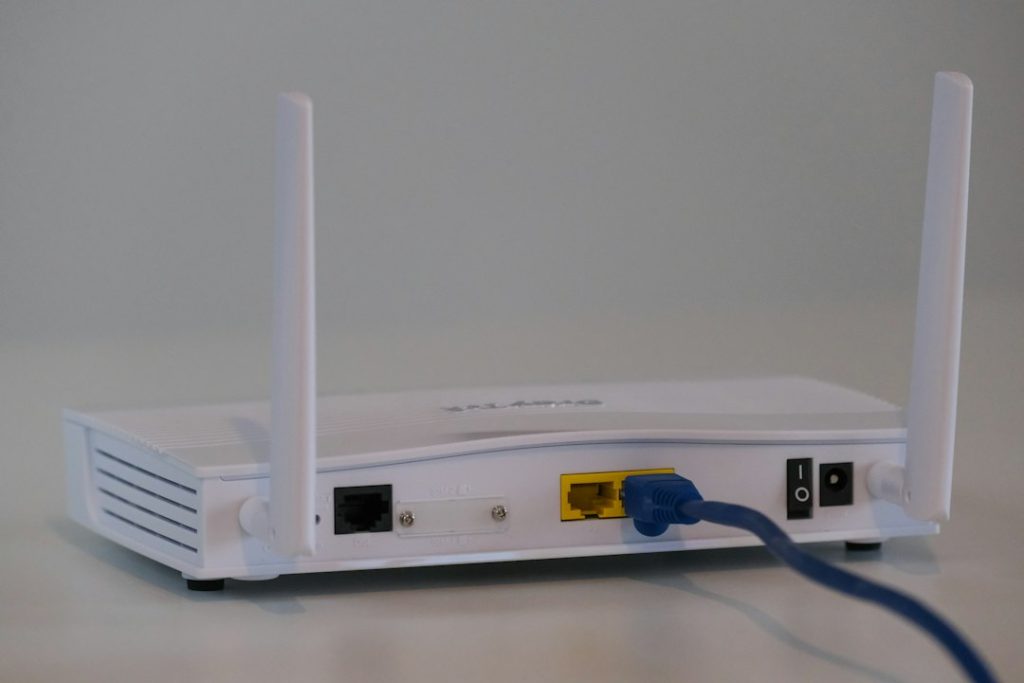
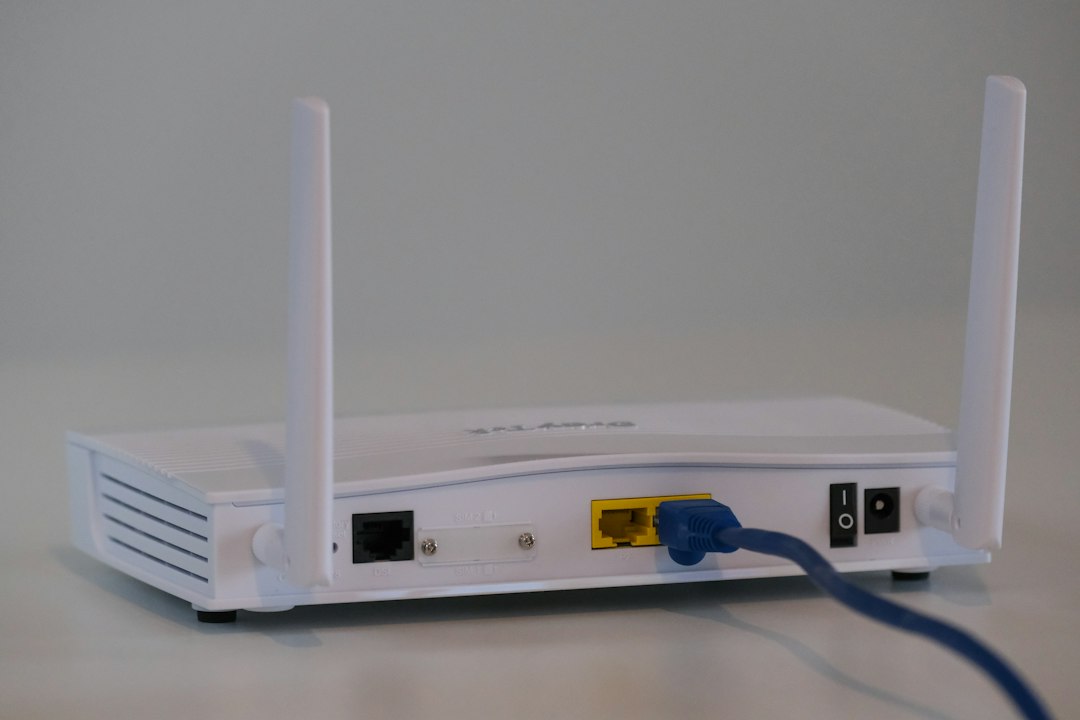
Press Windows + A to open Quick Settings. Ensure Wi-Fi is on and Airplane mode is off. Select the Wi-Fi network again if necessary. Check the router’s internet/WAN status indicator and cables. If several devices are offline and no critical services depend on the router, restart it according to the vendor’s instructions; allow several minutes to reconnect.
Step 3: Forget and reconnect to your wireless network
Open Settings → Network & internet → Wi-Fi → Manage known networks. Select your network and choose Forget. Return to available networks, choose the correct SSID, and enter the wireless password again. This deletes the saved Wi-Fi connection profile, so have the password ready.
Step 4: Check whether Windows received a valid IP address
Open Terminal or Command Prompt and run:
ipconfig /allLook for the active Wi-Fi adapter’s IPv4 Address, Default Gateway and DNS Servers. An IPv4 address beginning with 169.254 usually indicates that Windows assigned itself a link-local address after failing to obtain a DHCP lease. Check the router’s DHCP service and connection first.
If your adapter is configured for automatic IP addressing, and your network administrator permits it, try:
ipconfig /release
ipconfig /renew
These commands briefly disrupt connectivity. Do not use them blindly on a machine with a manually configured static IP address.
Step 5: Test the network path and DNS separately
In Terminal, find your default gateway using ipconfig, then ping that specific address. For example:
ping 192.168.1.1
ping 1.1.1.1
nslookup www.microsoft.com
The gateway address above is only an example; replace it with your actual gateway. Successful pings to a public IP but failed DNS lookups suggest a DNS issue. Some devices or networks deliberately block ICMP ping, so a failed ping is not conclusive on its own.
Step 6: Clear the local DNS cache
If an old name resolution entry is causing problems, open Terminal and run:
ipconfig /flushdnsYou should see a confirmation that the DNS Resolver Cache was flushed. Retry the website. This clears cached name lookups; it does not repair an ISP outage or a faulty router.
Step 7: Check VPN and proxy settings
If you use a personal VPN, temporarily disconnect it and try the connection again, then reconnect after diagnosing. For a proxy, open Settings → Network & internet → Proxy and check whether the configured proxy is intended for your network. On managed work or school devices, do not disable organizational security tools or change enterprise proxy settings without approval.
Step 8: Run Windows network diagnostics and inspect the adapter
In Windows 11, open Settings → System → Troubleshoot → Other troubleshooters and run any available network-related troubleshooter. Windows 11 versions may instead offer a Get Help network diagnostic flow. You can also open Device Manager → Network adapters, select the Wi-Fi device, and check for warnings. Install a compatible driver from the PC or adapter manufacturer’s official support page if needed. Avoid third-party driver download sites.
Step 9: Reset networking only as a last resort
Go to Settings → Network & internet → Advanced network settings → Network reset. Review the warning carefully: Windows removes and reinstalls network adapters and restores networking components to defaults. You may need to reconfigure VPN software, virtual switches, static IP settings, and saved networking configuration; a reboot is generally required. On managed PCs, ask IT before doing this.
How to identify the likely cause
| Symptom | What to check first |
|---|---|
| Every device is offline | Router/WAN connection and ISP |
| Only one PC is offline | Saved Wi-Fi profile, adapter and driver |
| IP begins with 169.254 | DHCP and wireless association |
| IP access works; names fail | DNS server and DNS cache |
| Problem appears only with VPN | VPN route, DNS and proxy policies |
Frequently asked questions
Will forgetting a Wi-Fi network delete personal files?
No. It removes the stored connection details for that network; you need the password to reconnect.
Does flushing DNS speed up the internet?
Not generally. It can clear stale name-resolution entries, but does not improve your purchased connection speed.
Should I change DNS to a public server?
Only after establishing that DNS is the problem and confirming your network policy. Changing DNS can interfere with corporate internal names, filtered networks or other configured services.
Related tutorial
If you’re diagnosing Windows problems more broadly, see our Windows laptop battery health guide. For Microsoft’s current troubleshooting flow, see Microsoft Support: Fix Wi-Fi connection issues in Windows.