

Introduction
Once you install Windows Server 2008, you have a grace period of 60 days to activate it. In this article, I will be showing you how to activate Windows Server 2008 online.
Note : Before your begin, make sure your server has an Internet connection
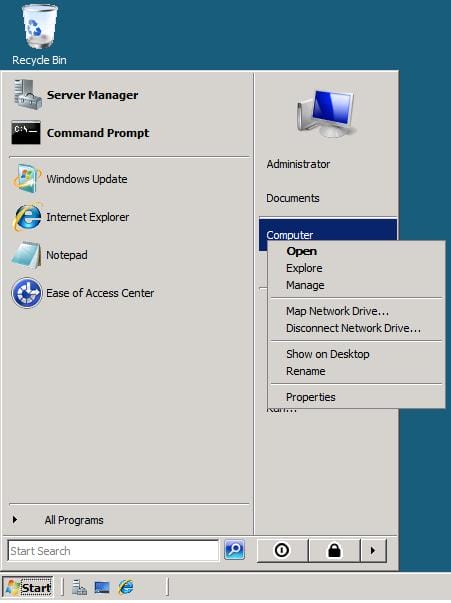
- Click on Start > then right click on Computer and click on Properties

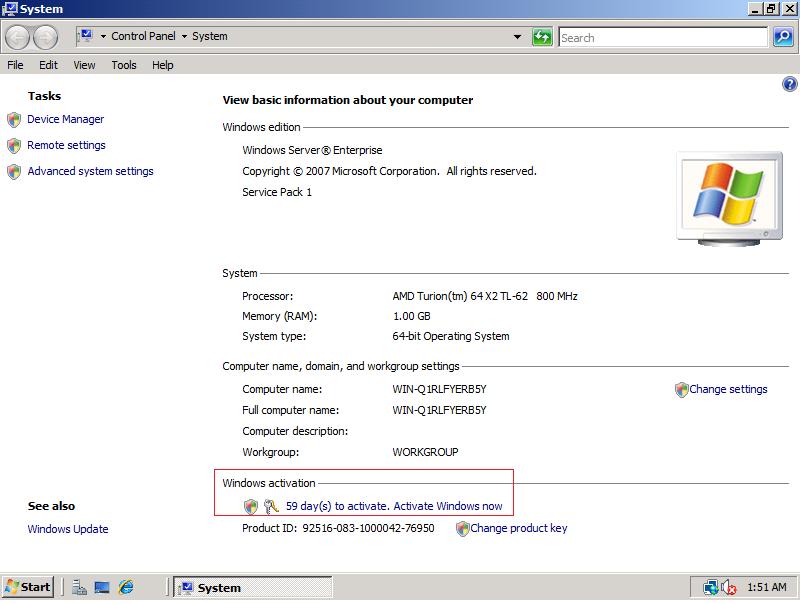
- The System basic information page will open. At the bottom of it, under Windows Activation section, the remaining days from the grace period (activation period) is displayed

- Click on the link XX days to activate. Activate Windows now (where XX is the remaining days)
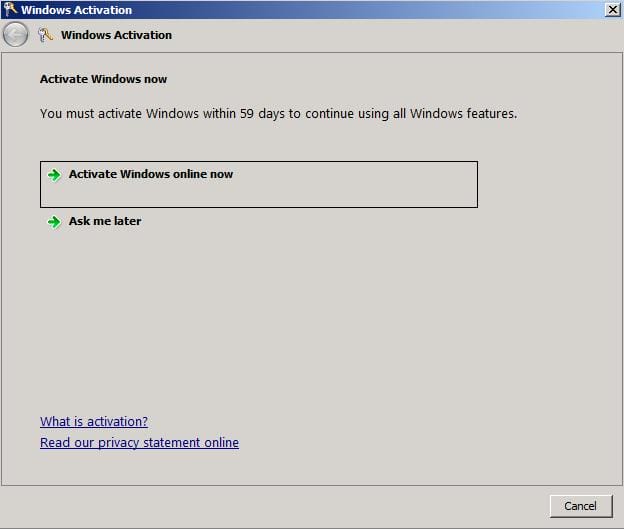
- The Windows Activation page will be displayed. Click on Activate Windows online now to start activating your Windows copy, or click on Ask me later to cancel the operation.

- If you have already provided a Product Key ( ex. while installing Windows Server ), then after few moments you will receive a confirmation that your Windows copy has been activated
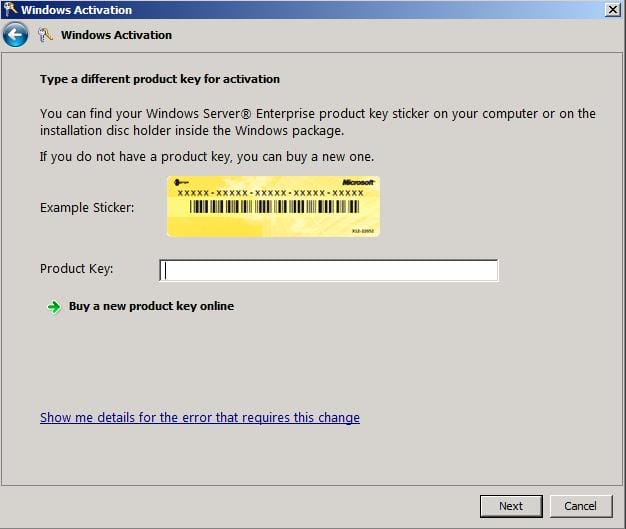
 If you have not supplied a Product Key while installing Windows Server, then you will be redirected to the below screen shot. Make sure you type the correct product key, in this I mean the product key for the installed version of Windows Server 2008. If you do not already have a product key, then you can buy one online by clicking on the button Buy a new product key online. Once you type a product key, click on Next
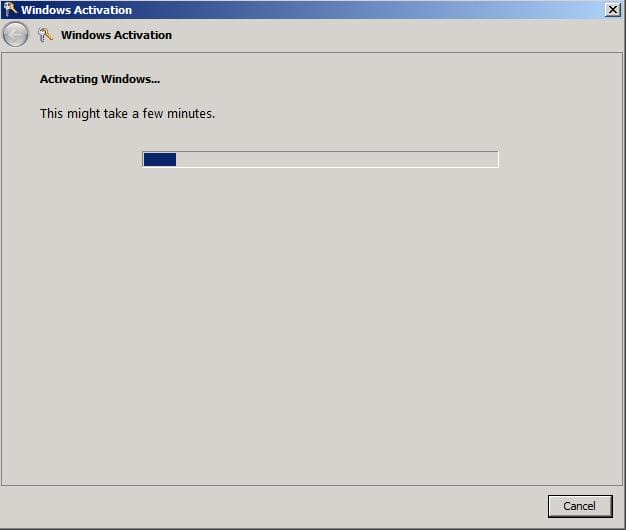
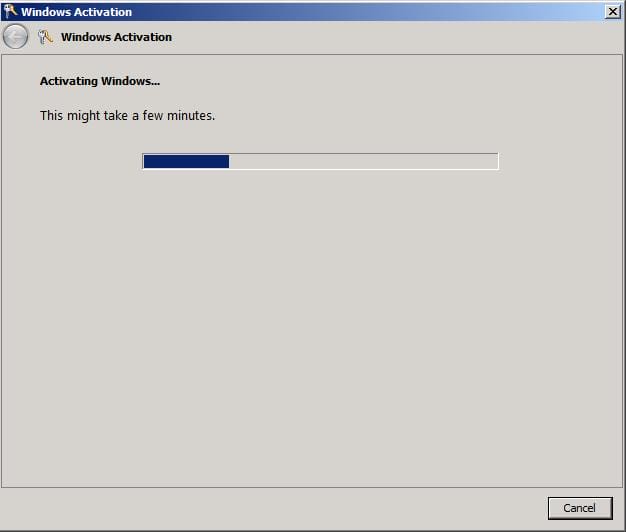
- Activating Windows is in the process. The activation wizard securely connects to a Microsoft server to transfer your installation ID when you submit it. A confirmation ID is passed back to your computer.

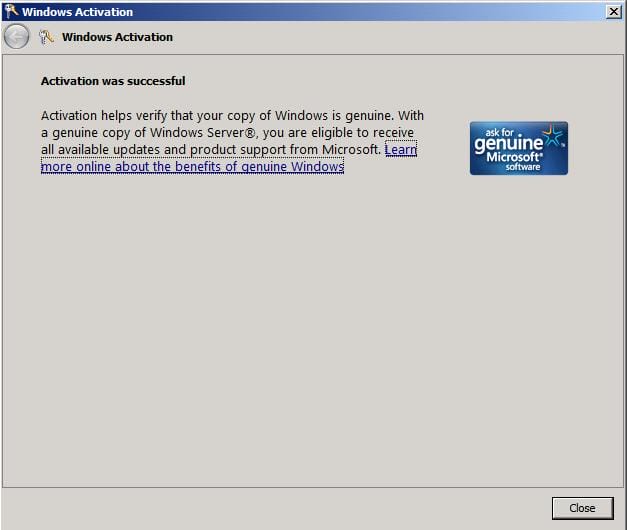
- Then you will finally receive a confirmation page that confirms that activation was successful. Enjoy your genuine copy of Windows.

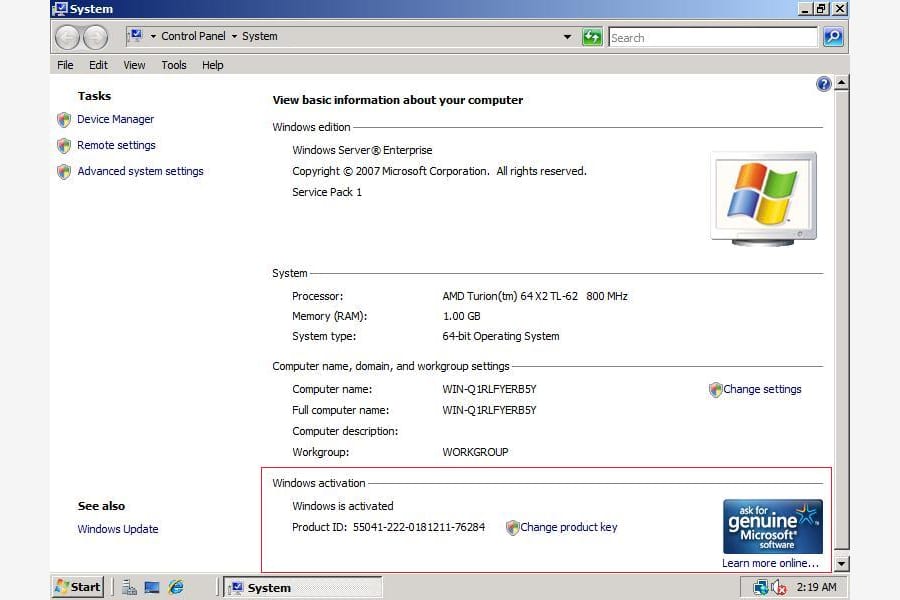
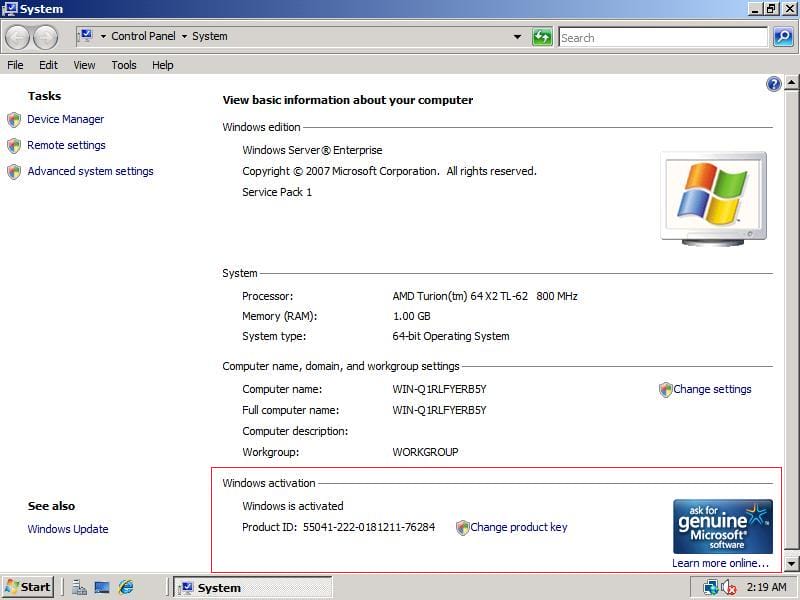
- If you went back to the system properties page, you will find that the remaining days link has been replaced with: Windows is activated

Summary
Activating Windows Server 2008 online is one of the methods that you can choose to activate it. This process typically takes just a few seconds to complete. No personally identifiable information is required to activate Windows Server 2008. The activation wizard securely connects to a Microsoft server to transfer your installation ID when you submit it. A confirmation ID is passed back to your computer, automatically activating Windows Server 2008.